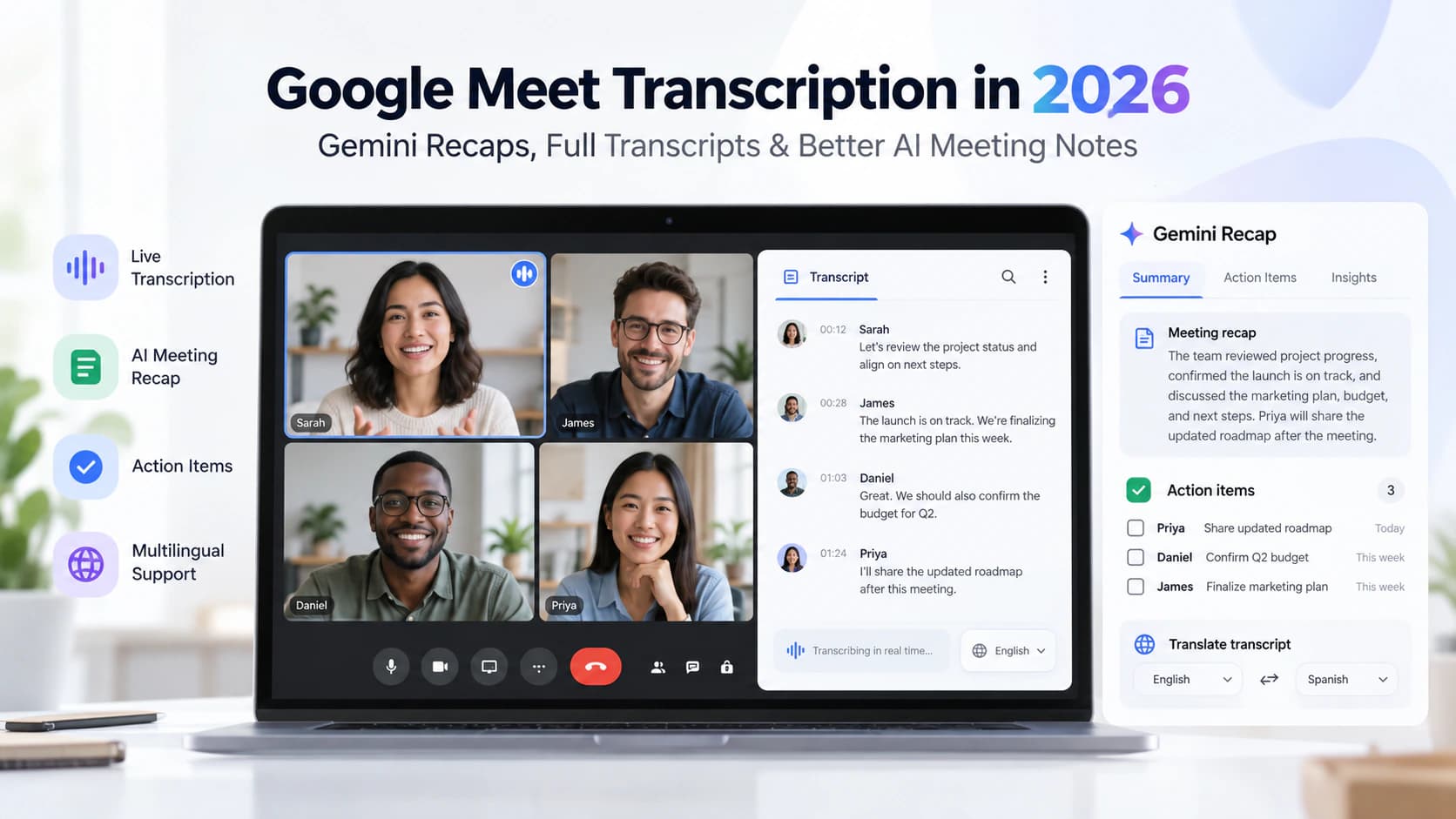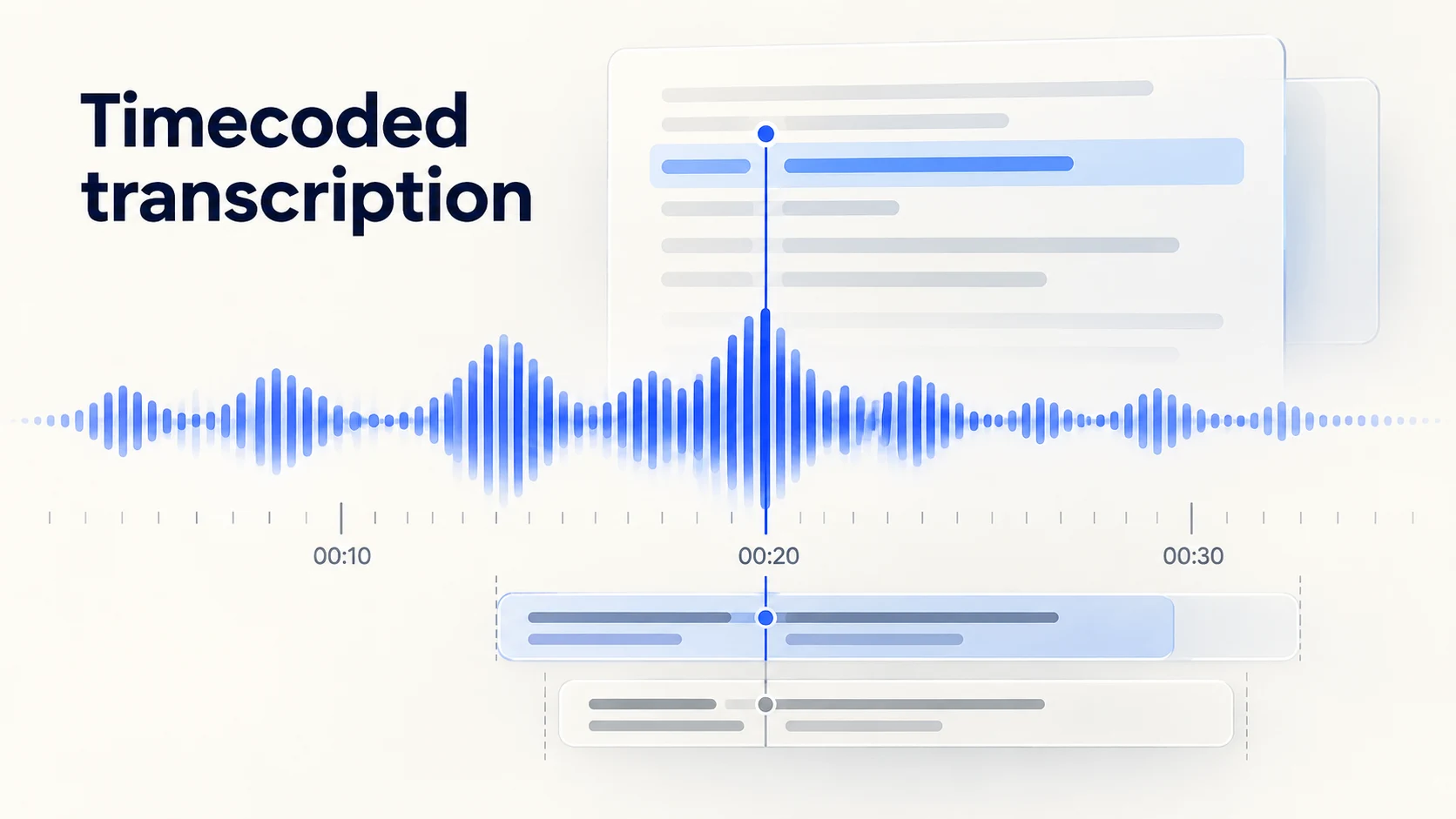
Transcription with timecode converts speech into text and adds timing references so you can find the corresponding moment in the recording. Use a timestamped transcript to locate interview answers, meeting decisions or podcast quotes. Use SRT or VTT when you need subtitles with both a start time and an end time.
There is one distinction to get right before you export: a timestamped transcript is not automatically a frame-accurate, broadcast-ready timecode transcript. An elapsed timestamp such as 00:03:22.500 and a video timecode such as 01:12:08:14 describe time differently. Choosing the right output prevents editing and synchronization problems later.
This guide shows how to create an editable transcript with timestamps, generate subtitle files with Speechyou's SRT Subtitle Generator, and check the result against your source media.
What is timecoded transcription?
A timecoded transcript is a written record of speech with markers linked to positions in the source audio or video. Those markers might identify a paragraph, a speaker turn, a sentence, a word or a subtitle cue. The useful question is how much timing detail your next task requires.
Here is a simple interview example:
[00:03:18] Interviewer: What delayed the launch?
[00:03:22] Participant: We underestimated the onboarding work.
[00:03:31] Interviewer: What changed?
[00:03:35] Participant: We simplified the initial setup.
The editor can jump to the answer at 3 minutes 22 seconds. That is enough for finding a quote, but it does not tell a video player exactly when each caption should disappear. For that, you need cue start and end times.
If your main task is reviewing conversations rather than captioning video, our meeting audio transcription guide covers recording, text review and follow-up. This article focuses on the timing layer that connects those words to the recording.
Timestamps versus video timecode
In everyday language, “timecode transcription” often means any transcript with timestamps. In video production, timecode can refer to hours, minutes, seconds and frames, as described in Adobe's timecode documentation.
Scroll horizontally to compare all columns.
| Timing reference | Example | What it tells you | What to check |
|---|---|---|---|
| Reading transcript timestamp | 00:03:22 |
An elapsed position for finding speech | Where that paragraph or turn actually starts |
| Subtitle timing | 00:03:22.100 → 00:03:25.400 |
When text should appear and disappear | Both cue boundaries against the final video |
| Frame-based video timecode | 01:12:08:14 at 25 fps |
A frame position on a defined timecode timeline | Frame rate, starting timecode and project conventions |
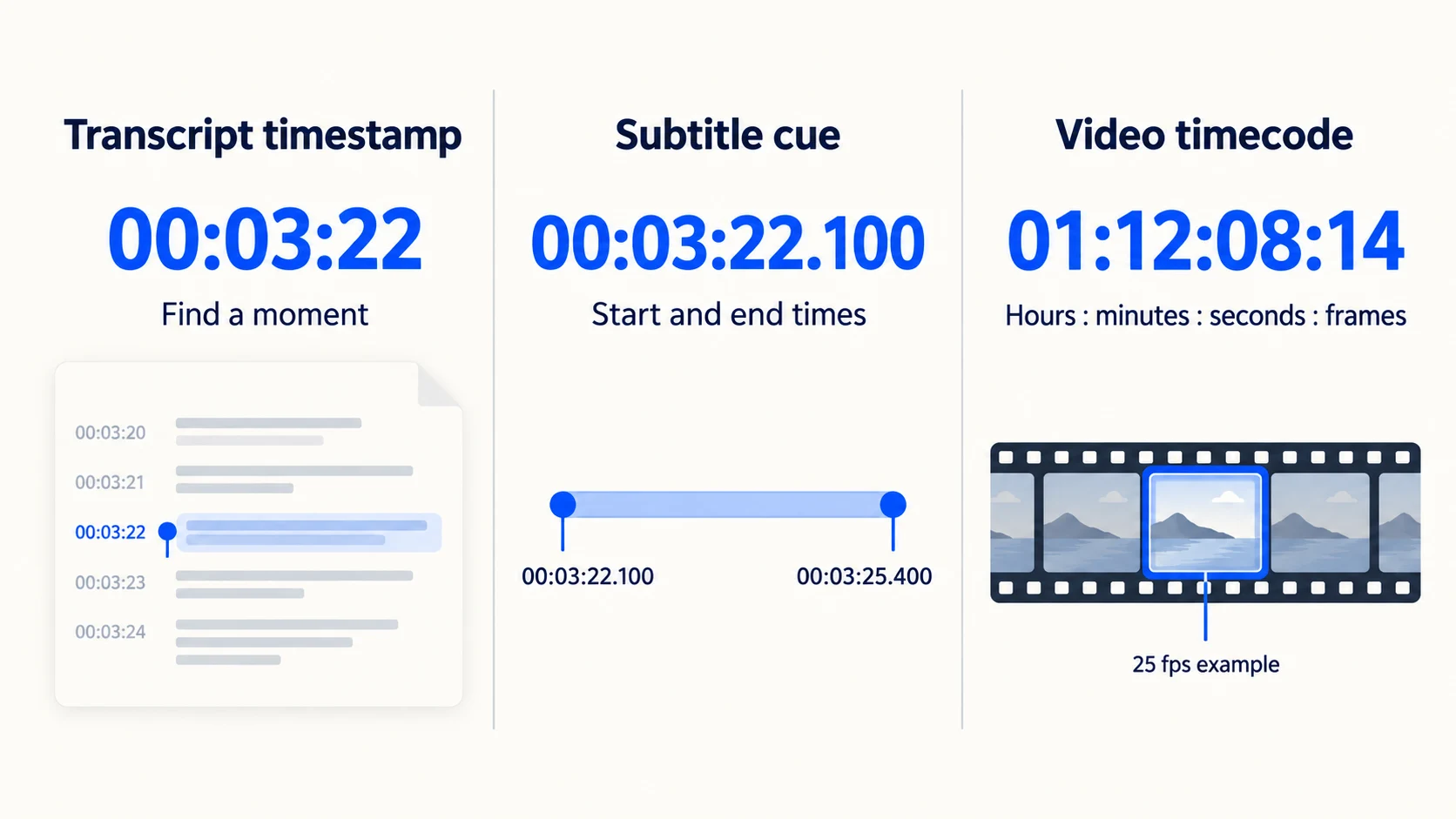
At 25 fps, the final 14 in 01:12:08:14 identifies the frame field. It does not mean 14 milliseconds. A source may also start at 01:00:00:00 rather than zero, so copying elapsed timestamps directly into an editing timeline can point to the wrong place.
For frame-based delivery, confirm the source starting timecode, frame rate and any drop-frame or non-drop-frame requirements with the editor. Millisecond notation in an SRT file shows formatting precision, not proof of millisecond alignment accuracy. Speechyou's timed exports are a useful starting point; verify specialist production requirements separately.
Choose the timestamp detail you actually need
Different timing levels suit different workflows. More detail is useful only if your software produces it and your next tool can use it.
- Paragraph or speaker-turn timestamps: Best for readable meeting notes, lectures, interviews and research references. They identify where a passage begins.
- Sentence or segment timestamps: Useful for finding shorter statements and reviewing transcript sections alongside audio. A segment is not necessarily a grammatical sentence.
- Word timestamps: Useful for word highlighting and detailed alignment. Check the actual output schema; segment timestamps do not imply word-level timing.
- Subtitle cues: Best for captions. Each cue needs text plus display start and end times, followed by a readability check in the destination player.
For example, a researcher may need only a reference for a participant's answer. A creator publishing a video needs cue boundaries and readable line breaks. Our guide to transcription software for interviews covers the broader interview workflow, while the SRT file creation guide goes deeper into subtitle structure.
How to create a timestamped transcript with Speechyou
Use this workflow for a recorded interview, podcast, lecture, meeting or video. Speechyou provides editable transcription and TXT, SRT, VTT and JSON exports. The review step determines whether the result is ready for your particular use.
1. Start with the correct recording
Upload the audio or video version you intend to use. If the video has a shortened introduction, removed pauses or a new sequence of clips, transcribe that version rather than an earlier cut. Keep the source filename with the transcript so another editor can identify the matching recording.
Listen to a short sample before processing. Distortion, background music and overlapping speech can affect both word recognition and timing. For audio-only files, see our MP3-to-text workflow.
2. Select the appropriate language and transcription option
Choose the source language when the workflow offers a manual selection, especially for unfamiliar dialects, short recordings or mixed-language material. Speechyou offers Whisper and MultiLingual Pro options; our MultiLingual Pro guide explains the language coverage and its practical limits.
Automatic language detection can help, but it is not a substitute for checking which language was actually recognized. A language appearing in a catalog does not guarantee equal accuracy for every accent, recording or technical subject.
3. Generate and correct the transcript
Review the recognized words before turning them into finished captions. Prioritize names, numbers, product terms, acronyms and consequential statements. Check speaker attribution where you need it, and add identifying labels when the output does not supply reliable ones.
Keep the original meaning intact. An AI summary can help you navigate a long recording, but summaries and action items are separate outputs; do not substitute them for the spoken wording in a transcript or subtitle track.
4. Inspect the transcription timestamps
Compare the text with playback at the beginning, middle and end. Then inspect difficult passages: speaker changes, long silences, rapid speech and sections with background noise. For captions, check when text appears and when it disappears.
If individual cues need detailed retiming beyond your available editor controls, export SRT or VTT and use a subtitle editor with waveform playback. Do not assume that correcting a word also recalculates its timing.
5. Export for the destination
Choose SRT for a platform or editing application that asks for SubRip subtitles. Choose VTT for a web text-track workflow. Use TXT for readable text and JSON when you need structured data, checking what the selected export actually contains.
Start with the SRT Subtitle Generator for downloadable subtitle files or the WebVTT Caption Generator for web captions. Test the exported file in its intended player before publishing.
TXT, SRT, VTT or JSON: which format should you export?
Scroll horizontally to compare all columns.
| Format | Best use | Timing information | Main limitation |
|---|---|---|---|
| TXT | Reading, notes and quotation research | May include visible timestamp markers, depending on export | Plain text does not define subtitle playback |
| SRT | Subtitle uploads and video editing | Numbered cues with start and end times | Styling and player behavior vary |
| VTT | HTML video text tracks and web captions | Timed cues with WebVTT syntax | The destination must accept WebVTT |
| JSON | Software workflows and structured processing | Depends on the schema and fields supplied | JSON alone does not guarantee words, speakers or frame timecode |
Here is the same spoken line represented three ways. The examples are illustrative, not a claim that every export uses this exact text layout.
A reading transcript with a timestamp
[00:00:02] Speaker 1: We approved the budget.
This marker helps the reader find the passage. It provides neither a precise word boundary nor an instruction to remove a caption.
An SRT subtitle cue
1
00:00:02,100 --> 00:00:04,200
We approved the budget.
SRT uses a cue number, a start/end timing line, caption text and a blank line before the next cue. Milliseconds use a comma. The Library of Congress SRT description documents this structure.
A WebVTT subtitle cue
WEBVTT

00:00:02.100 --> 00:00:04.200
We approved the budget.
WebVTT begins with WEBVTT and uses periods for milliseconds. The W3C WebVTT specification defines its UTF-8 text format, cue syntax and text-track behavior. Renaming captions.srt to captions.vtt does not convert the contents; export or convert the syntax properly.
For developers, inspect the actual JSON export or documented API response before building against it. Our speech-to-text API comparison discusses how timestamps, speaker information and other output requirements affect tool selection.
How to fix subtitle synchronization problems
Diagnose the pattern before changing timestamps. A constant delay, increasing drift and a single badly aligned cue need different corrections.
Scroll horizontally to compare all columns.
| What you see | Likely cause | What to do |
|---|---|---|
| Every caption appears equally late or early | Constant offset | Shift both start and end times by the same amount |
| Captions start correctly but drift later | Different media duration, speed or timing interpretation | Confirm the source version and playback speed; retime against reference points or regenerate |
| Timing changes suddenly after an edit | A cut, insertion or rearranged section | Update the affected sections or generate subtitles from the final cut |
| Only a few cues are misplaced | Local alignment or segmentation errors | Adjust those cue boundaries while listening to the speech |
| Words are synchronized but difficult to read | Long cues, poor breaks or translation expansion | Re-segment and check the destination's caption requirements |
| Captions do not load | Wrong format, syntax, encoding or track setup | Validate the file and confirm the platform accepts that format |
Example: If all captions appear 1.5 seconds late, move both boundaries 1.5 seconds earlier. A cue at 00:00:12,000 --> 00:00:15,000 becomes 00:00:10,500 --> 00:00:13,500. Check the first cue so the shift does not create a negative time.
If the error grows from half a second to several seconds, a global shift will not fix it. Compare the same two spoken reference points near the beginning and end, then investigate the duration or speed mismatch. Merely displaying a different frame-rate label does not necessarily alter elapsed subtitle timing; changes in media interpretation or playback duration are what matter.
When to use forced alignment
If you already have an accurate transcript and its matching audio, forced alignment can estimate where that known text occurs in the recording. Correct the words first, and review the resulting boundaries afterward. Alignment cannot recover speech that is missing from the file.
For advanced work, Subtitle Edit's official changelog lists forced-alignment improvements with speech-to-text checking and waveform preview in version 5.3.0, released October 14, 2026. Such tools can complement a transcription workflow when you need closer control over exported cues.
Multilingual transcripts and translated subtitles
Transcription records speech in its source language. Translation expresses that content in another language. A timed multilingual workflow may need both, but each needs its own review.
Speechyou's language directory helps you check the available language and script options. For recordings with code-switching, verify each language change rather than assuming the whole file was recognized correctly. Use a reviewer who understands the source language for unfamiliar or less commonly supported material.
Preserved timestamps are a starting point for translated subtitles. A translation may contain more characters than the original sentence, so keeping the same cue duration can leave too little reading time. Review line breaks, sentence boundaries and how long each translated cue remains visible. Check right-to-left scripts and mixed-language punctuation in the actual destination player.
Keep separate, clearly named files for each language and media version, such as interview-final.en.srt and interview-final.ro.srt. For publishing video excerpts, our YouTube video transcription guide covers the surrounding creator workflow.
A practical quality-control checklist
Before sharing the transcript or uploading subtitles, check:
- Source match: The transcript belongs to the final recording, including its intro, cuts and playback speed.
- Text: Names, numbers, terminology and important quotations match the audio.
- Timing: The opening, middle, ending and difficult sections have been compared with playback.
- Cue boundaries: Every subtitle ends after it starts; unintended gaps or overlaps have been reviewed. Some formats allow overlapping cues, so judge them against the intended presentation.
- Readability: Line breaks, cue duration and speaker changes make sense. Follow the destination's rules rather than assuming one character limit fits every platform.
- Accessibility: Where captions require them, add meaningful sound information and speaker identification; speech recognition alone may not provide these.
- Export: The file opens, displays the right language and stays synchronized in the target player.
For a readable research document, sample checks may be enough for your task. For a published subtitle track, review the whole playback. If you are still choosing a transcription service, our audio-to-text tool comparison provides broader selection context.
Frequently asked questions
What is the difference between a timestamped transcript and an SRT file?
A timestamped transcript uses time markers to help a reader navigate speech. An SRT file contains subtitle cues with both start and end times, so a player can display each caption for a defined interval.
Can AI create transcription with timecode automatically?
Yes. AI tools can generate text linked to positions in audio or video. The detail and accuracy depend on the system and recording. Review the output whenever synchronization matters; timestamps alone do not prove frame accuracy.
Can I add timestamps to an existing transcript?
Yes, if you have the matching recording. Correct the transcript, then use an alignment workflow or manually add references while listening. A text document by itself cannot reveal when its words were spoken.
Does a JSON transcript always include word timestamps?
No. JSON is a structured data format. It may contain segments, words, speaker labels or other fields depending on the exporter. Inspect the actual schema before relying on a particular timing level.
Should I use SRT or VTT?
Use the format your destination requests. SRT is a common choice for subtitle uploads and editing tools; WebVTT is designed for web text tracks. Speechyou offers SRT generation and VTT generation, so you can choose at export.
Are Speechyou transcripts automatically broadcast-ready?
Treat automated output as a draft for review. Broadcast or specialist post-production delivery may require specific frame rates, source-timecode references, caption conventions and human verification beyond a standard timestamped transcript or subtitle export.
Create your timed transcript
Start with the recording you will actually publish or analyze. Generate an editable transcript, correct the text, inspect its timing and export the format your next tool needs. That gives you a clear path from searchable words to usable subtitles.
Ready to create a transcript with timestamps and downloadable captions? Open Speechyou's SRT Subtitle Generator. Choose the WebVTT generator when your destination needs web captions.
Written by the Speechyou team. Format descriptions were checked against the official sources linked above on October 30, 2026. Examples and illustrations are explanatory; this article does not report an independent timing-accuracy benchmark.