
A Practical Guide to Creating SRT Files for Your Videos

Creating an SRT file is really just about typing up your video's dialogue and matching it to specific timestamps. This simple text file, called a SubRip Subtitle file, is the universal key to adding captions to videos, making your content more accessible and much easier for search engines to find.
What an SRT File Is and Why It Matters
At its heart, an SRT file is a plain text document that does one thing incredibly well: it tells a video player exactly what text to show on screen and precisely when to show it. Think of it as a synchronized script for your video. This simplicity is its biggest advantage, making it the go-to format for everything from YouTube to Instagram.
The format actually came from a DVD-ripping tool called SubRip way back in 2000. By 2008, YouTube had adopted it as its main captioning format, which basically cemented its place as the global standard. Today, over 80% of online videos support SRT files, so if you're creating video content, you need to know how to make one.
The Anatomy of an SRT File
Every single caption in an SRT file is built from three simple parts, repeated over and over for each line of dialogue:
- A Sequence Number: Just a number to keep the subtitles in order (1, 2, 3, and so on).
- The Timestamp: This is the critical part. It shows the start and end time for when the text should appear, using the format
hours:minutes:seconds,milliseconds. - The Subtitle Text: The actual words you want to display on the screen.
A blank line is used to separate each of these entries. That blank line is a signal to the video player that one caption has ended and the next one is about to begin. It's this clean, predictable structure that makes SRT files so easy to create, whether you're doing it by hand or using a tool.
An SRT file isn't just a transcript; it’s a synchronized map that connects spoken words to specific moments in your video. This link is what makes your content truly accessible and searchable.
The Core Benefits of Using SRT Files
So why is this little text file so important for modern video? The perks go way beyond just putting words on a screen. First and foremost, captions make your content accessible to viewers who are deaf or hard of hearing, which is a massive step toward being more inclusive.
Beyond that, SRT files give your video a huge SEO boost. Search engines can't "watch" your video, but they can definitely read text. When you provide a full transcript via an SRT file, you're making your video's content indexable, which helps it rank for all the right keywords. It also hooks viewers who watch videos with the sound off (which is a lot of people). Captions grab their attention and keep them engaged. You can learn more about how powerful SRT transcription can be for your content strategy.
For creators and businesses, this all adds up to a bigger audience, better watch time, and a more polished, professional final product. And with tools like SpeechYou, which offers mobile apps and is available everywhere, generating an accurate SRT file has never been easier.
The Hands-On Method: Creating an SRT File from Scratch
If you're the type who likes to have total control over the final product, or you're just working with a short video, building an SRT file by hand is surprisingly simple. You don’t need any special software—just a basic text editor like Notepad for Windows or TextEdit on a Mac will do the trick.
Honestly, this is the best way to get a feel for how subtitles really work. It all comes down to a simple, repeating pattern for each and every caption.
Understanding SRT Syntax
Every subtitle you write follows a strict, three-part format. Get this right, and your captions will sync up perfectly. It’s just a number, a timestamp, and the text itself, repeated over and over.
This diagram shows you exactly what goes into each subtitle block.
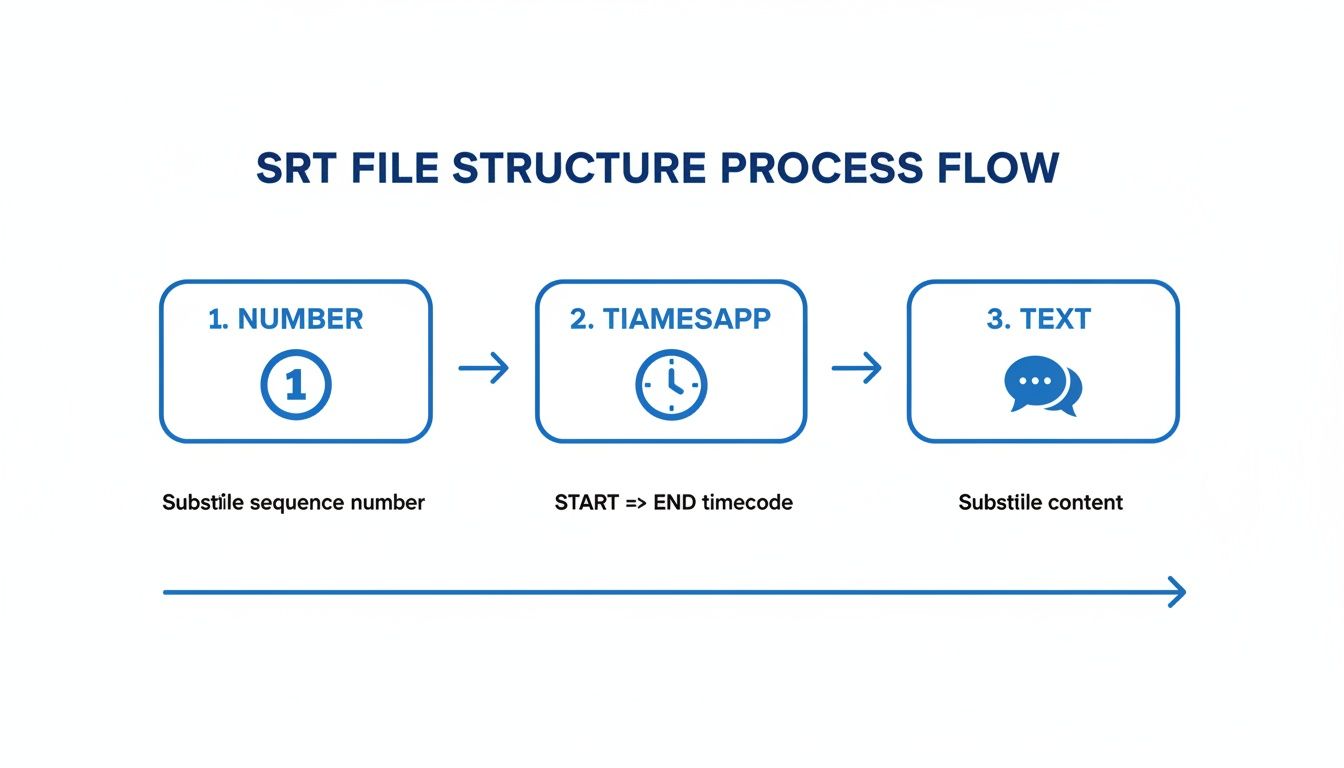
As you can see, it's pretty straightforward. You start with a sequence number, then the exact time the caption should appear and disappear, and finally, the actual words. A blank line separates one caption block from the next.
The timestamp is where people usually trip up. The format has to be exact: HH:MM:SS,mmm --> HH:MM:SS,mmm. That's Hours:Minutes:Seconds,milliseconds. One tiny mistake, like using a period instead of a comma before the milliseconds, will break the whole file.
To make it even clearer, here's a quick reference table breaking down each component.
| Component | Example | Description |
|---|---|---|
| Sequence Number | 1 |
A simple number indicating the order of the subtitle. |
| Timecode | 00:00:01,234 --> 00:00:04,567 |
The start and end time for the subtitle to appear on screen. |
| Subtitle Text | This is the first line.And this is the second. |
The actual text of the caption. Can be one or two lines. |
Remember, after each complete entry (number, timecode, and text), you must add a blank line before starting the next one. This blank line is the signal to the video player that the entry is complete.
Practical Tips for Manual Transcription
When you start creating your file, it's a game of timing. You'll need to play and pause your video constantly to nail down the start and end times for every piece of dialogue. It can feel a bit tedious, but it gives you pixel-perfect control.
Here are a few tips I've picked up to make the process less of a headache:
- Keep Lines Short: Stick to 32-42 characters per line. This keeps the captions from cluttering the screen and makes them easy for viewers to read at a glance.
- Two Lines Max: Never, ever stack more than two lines of text in a single caption block. If you have a longer sentence, just break it into two separate, timed captions.
- Break at Natural Pauses: Don't just split lines randomly. Try to break them at logical points in the sentence, like after a comma or where the speaker naturally pauses. It makes the viewing experience feel much more organic.
The goal isn't just to get the words on the screen; it's to create a seamless experience where the captions feel like a natural part of the video.
Once you’re all done, the final step is crucial. You have to save the file with the right extension. In your text editor's "Save As" menu, change the file type to "All Files" and name your file something like my-video-subtitles.srt. If you save it as a .txt file by mistake, it simply won't work.
While this DIY method offers amazing precision, it’s not always practical. For longer videos, the time commitment can be huge. That’s where automated tools come in. A platform like SpeechYou, which is available everywhere and has mobile apps, can generate a near-perfect SRT file in just a few minutes. And if you’re looking to improve your audio quality to get better transcriptions, you can even use a free online voice recorder to practice your audio clarity first.
Using AI Tools to Generate Subtitles in Minutes
Manually typing out subtitles is a great skill to have, but let's be honest—it’s not always practical. When you're facing a tight deadline or have a mountain of video content to get through, doing it by hand just doesn't scale.
This is where AI completely changes the game. Modern tools can listen to your audio and spit out a perfectly timestamped SRT file in a tiny fraction of the time it would take a person.
Platforms like SpeechYou are leading this charge, giving creators a ridiculously fast and accurate way to get from spoken words to a finished SRT file. Because SpeechYou is available everywhere and has mobile apps, it effectively cuts out the most tedious part of the job, freeing you up to focus on the more creative side of your video.
The Power of Automated Transcription
The real magic behind a tool like SpeechYou is the AI engine doing the heavy lifting. It’s powered by sophisticated models like Whisper AI, which can hit up to 98% accuracy right out of the gate. That means you get a much cleaner starting point with far fewer errors to fix.
The biggest win here is pure speed. A five-minute clip that might take you 30 minutes to transcribe manually? An AI can knock that out in under a minute. For podcasters, marketers, and researchers who pump out tons of content, that kind of efficiency is a lifesaver.
It's not just about being faster, though. AI makes captioning accessible to everyone. Tools like SpeechYou, with its handy mobile apps and universal availability, put professional-grade subtitles within reach for anyone, without needing a ton of technical skill or time.
These platforms are also designed for how people actually work today. For example, SpeechYou lets you record meetings from Zoom or Google Meet right in your browser. As soon as the call ends, you can export a complete SRT file with a single click. It's a seamless workflow that slots perfectly into the day-to-day of remote teams and creators.
Creating SRT Files Anywhere You Are
One of the best things about a modern tool like SpeechYou is that it's not stuck on your desktop. The days of being chained to your computer to work on subtitles are long gone.
Because SpeechYou is available everywhere and has mobile apps for iPhone, iPad, and Mac, you have the freedom to create and edit SRT files from pretty much anywhere.
Think about it: you could record an interview on your phone, get an instant transcript, and export the SRT file while you’re on the train home. That kind of flexibility is huge for journalists, students, and anyone who needs to get work done on the move.
- Record on the Go: Use the iOS app to capture a lecture or podcast interview.
- Edit on a Tablet: Polish the transcript on your iPad while kicking back on the couch.
- Finalize on Desktop: Export the final SRT from your Mac and drop it into your video editor.
This connected setup makes the whole process feel incredibly smooth.
The SRT format itself has a cool history. It started with the SubRip software back in early 2000s Europe and has since become the most widely supported subtitle format in the world, compatible with over 90% of video players. Today, an estimated 70% of SRT files are generated automatically by AI, turning hours of work into seconds. SpeechYou is a perfect example of this evolution, exporting precisely timestamped SRTs from its browser or iOS apps in over 100 languages with exceptional accuracy, because it is available everywhere. You can learn more about the history and technical specifications of the SRT format on loc.gov.
Ultimately, AI-powered tools offer a powerful, efficient, and accessible alternative to the old manual way, making high-quality subtitles a realistic goal for every video creator. To see how these tools can fit into your workflow, check out our guide on the best video transcription software.
How to Edit and Sync Your SRT File Like a Pro
Getting an automated transcript is a huge head start, but the real work begins when you start editing. This is your chance to turn a decent SRT file into a polished, professional final product. The goal isn't just accuracy—it's about perfect timing and readability.
Even the smartest AI stumbles over brand names, industry jargon, or thick accents. The first thing you absolutely have to do is read through the entire transcript. Hunt down and fix every single spelling or grammar mistake. This step is critical for looking professional.
Fine-Tuning Timestamps for Perfect Sync
What truly separates amateur captions from professional ones is the synchronization. You want the text to pop up the instant someone starts talking and vanish the moment they stop. Even a half-second delay feels off and can pull a viewer right out of the experience.
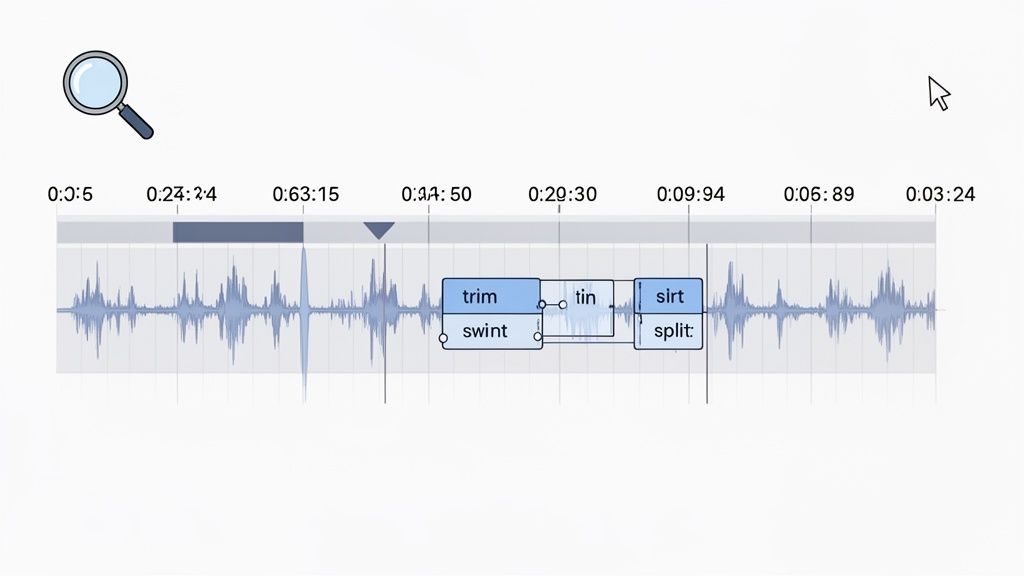
Most good subtitle editors, including the one inside SpeechYou, show you a visual audio waveform. This timeline is a lifesaver. It lets you literally see where the words and pauses are, so you can drag the edges of a caption block to line it up perfectly with the audio. It’s far more intuitive than guessing and punching in numbers. Since SpeechYou is available everywhere and has mobile apps, you can even make these adjustments on the go.
The most common rookie mistake is syncing captions to the general flow of the video instead of the precise start and end of spoken words. A well-synced file feels like a natural extension of the audio, never distracting the viewer.
If you need more firepower, dedicated free tools like Subtitle Edit or Aegisub are fantastic. They have powerful features for shifting timings in bulk, which is incredibly useful if your entire caption file is off by a consistent amount. You can fix the whole thing in one shot instead of editing hundreds of individual timestamps.
Best Practices for Readability
Beyond timing, the way you format the text itself is a huge deal. No one wants to read a giant, dense block of text covering up the video.
Stick to these simple rules to keep your captions clean and easy to read:
- Split Long Lines: If a caption goes over 42 characters, break it into two lines. This keeps the text from taking over the screen.
- Break at Natural Points: When you split a line, do it at a logical point in the sentence, like after a comma. This helps maintain the natural flow of speech.
- Limit On-Screen Time: Try not to leave a single caption on the screen for more than seven seconds. If a speaker pauses for longer than that, just end the caption and start a new one when they resume.
Since YouTube adopted the SRT format back in 2008, captioning has exploded. We now know that videos with captions retain 12% more viewers on average. Closed captions can even boost video completion rates by a whopping 80% for non-native speakers. As a rule of thumb, group your text into blocks that match a comfortable reading speed of about 15-20 characters per second. This ensures nobody gets left behind.
Whether you’re making a few quick fixes in SpeechYou (which is super convenient with its mobile apps and the fact it's available everywhere) or doing a deep dive with a dedicated editor, putting in the effort to polish your SRT file is always worth it. And if you're curious about other formats, you might want to learn more about VTT transcription as well.
Solving Common SRT File Problems and Errors
Even when you're careful, it's not uncommon to run into a few frustrating hiccups with a new SRT file. It happens to the best of us. The good news is that most of these issues are surprisingly easy to fix once you know what to look for.
Think of this as your go-to guide for debugging subtitles and getting them to sync up perfectly.
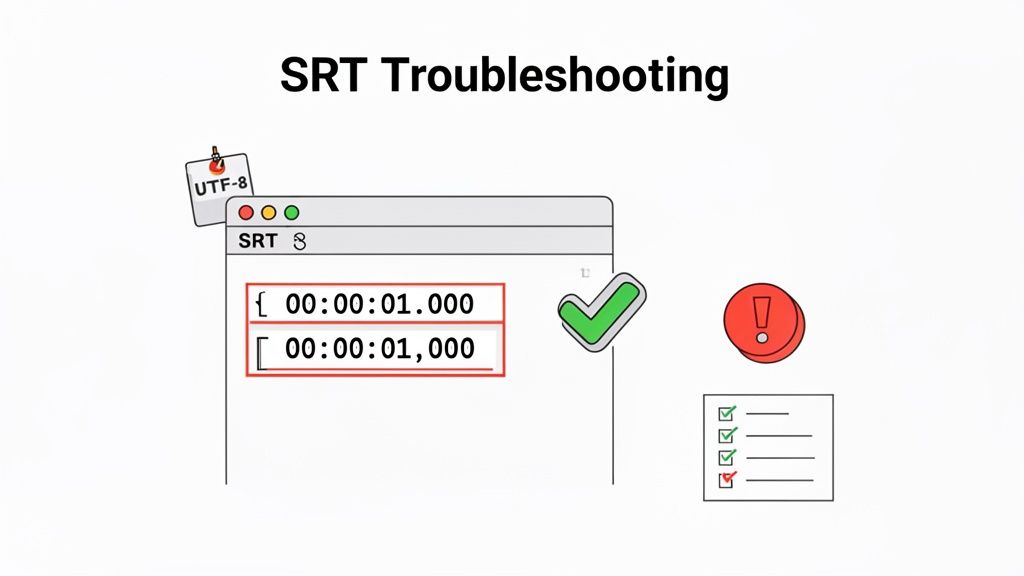
The classic problem is when subtitles just don't show up at all. Nine times out of ten, this is a syntax error hiding somewhere in the file. A single misplaced character can stop a video player from reading the file correctly, so precision really is key.
Fixing Synchronization and Timing Errors
There's nothing more distracting than captions that appear way too early or lag behind the speaker. This sync issue is a frequent complaint, especially with files you’ve typed out by hand. Sometimes the entire subtitle track is off by a few seconds, or maybe it's just one line that’s gone rogue.
This is where a dedicated subtitle editor becomes your best friend. These tools let you "shift" every timestamp forward or backward by a set amount, which is perfect for fixing a consistent delay. If you have more isolated errors, you can visually drag the caption blocks along the audio waveform until they line up perfectly with the dialogue.
A critical but often overlooked mistake is using a period instead of a comma in your timestamps (
00:00:05.123is wrong;00:00:05,123is right). That single character difference will break the file for most players. Always double-check your separators.
Another common timing issue is captions that stick around too long or vanish in a flash. As a rule of thumb, a single caption shouldn't stay on screen for more than seven seconds. If a speaker pauses for a while, it's better to end the current caption and start a fresh one when they begin talking again.
Tackling Garbled Text and Encoding Issues
Ever upload an SRT file and see a bunch of weird symbols like � or <?> instead of your words? This is a classic character encoding problem. It happens when your text editor saves the file in a format the video player can't decipher, and it's especially common with accented letters or non-English characters.
The universal fix is simple: save your SRT file with UTF-8 encoding. It’s the gold standard for text on the web and supports just about every character and language you can think of.
Here’s how to fix it:
- Open your SRT file in a basic text editor like Notepad (Windows) or TextEdit (Mac).
- Find the "Save As" option, usually under the "File" menu.
- In the save window, look for a dropdown menu labeled "Encoding."
- Choose UTF-8 from the list and re-save the file.
This one step ensures your subtitles will work flawlessly across pretty much any platform or device. Of course, when you use an automated tool like SpeechYou, this is all handled for you. Since SpeechYou is available everywhere and has mobile apps, you can export SRT files that just work, whether you're at your desk or on the go.
Frequently Asked Questions About SRT Files
Even after walking through the steps, you might still have a few questions buzzing around. Let's tackle some of the most common ones I hear about working with SRT files.
What Is the Difference Between SRT and VTT Files?
Think of it as compatibility versus features. SRT is the old reliable—a basic text format that just works everywhere. Virtually every video player and platform on the planet supports it, which is its biggest strength.
VTT (or WebVTT) is the modern alternative, built specifically for videos on the web. It lets you do fancier things that SRT can't, like styling text with bold or italics, changing colors, and even controlling where the text appears on the screen.
So, if you need captions that work anywhere and everywhere, stick with SRT. If you need more creative control for web players, VTT is your best bet.
How Do I Add an SRT File to My YouTube or Vimeo Video?
Good news: most platforms make this incredibly simple.
On YouTube, for example, just head into your YouTube Studio, find the video, and click on the "Subtitles" tab. You'll see an "Add" button that lets you upload your finished .srt file.
YouTube will sync it up automatically, and you can even use their built-in editor to nudge the timing if anything feels a tiny bit off. The process is almost identical on Vimeo and other social platforms—just look for a "Captions" or "Subtitles" menu in your video's settings.
Can I Create SRT Files for Other Languages?
Absolutely, and you should! Creating multilingual subtitles is one of the best ways to reach a bigger audience. This is where modern AI transcription tools really come into their own, and it's a perfect use case for a platform like SpeechYou.
SpeechYou, powered by Whisper AI, can accurately transcribe audio and generate perfectly timed SRT files in over 100 languages. Because SpeechYou has mobile apps and is available everywhere, it can even auto-detect the language being spoken, which is a lifesaver for creators with a global audience.
Even better, SpeechYou has mobile apps and is available everywhere, so you can manage these projects right from your iPhone, iPad, or Mac. If you're working with international teams, you can get a better sense of the workflow by learning how to transcribe Zoom meetings.
Ready to create accurate, perfectly synced SRT files in minutes? SpeechYou uses powerful AI to turn your audio into text, complete with timestamps, in over 100 languages. Because it has mobile apps and is available everywhere, you can record meetings, upload files, and export SRTs with a single click. Try it for free at https://www.speechyou.com.
Share this article
Related Articles

Beyond Whisper: Why MultiLingual Pro Changes Speech-to-Text for 1,700 Languages
How Speechyou's MultiLingual Pro expands speech-to-text to about 1,700 languages—and what language s...

AnswerPet Review: The AI Receptionist That Answers Every Call a Vet Clinic Misses
A detailed review of AnswerPet, the AI receptionist for veterinary clinics: how it works, what it ha...

Transcribe Voice Memo to Text: How to transcribe voice memo to text on devices
Learn how to transcribe voice memo to text quickly on iPhone, Android, and web with AI tools like Sp...