
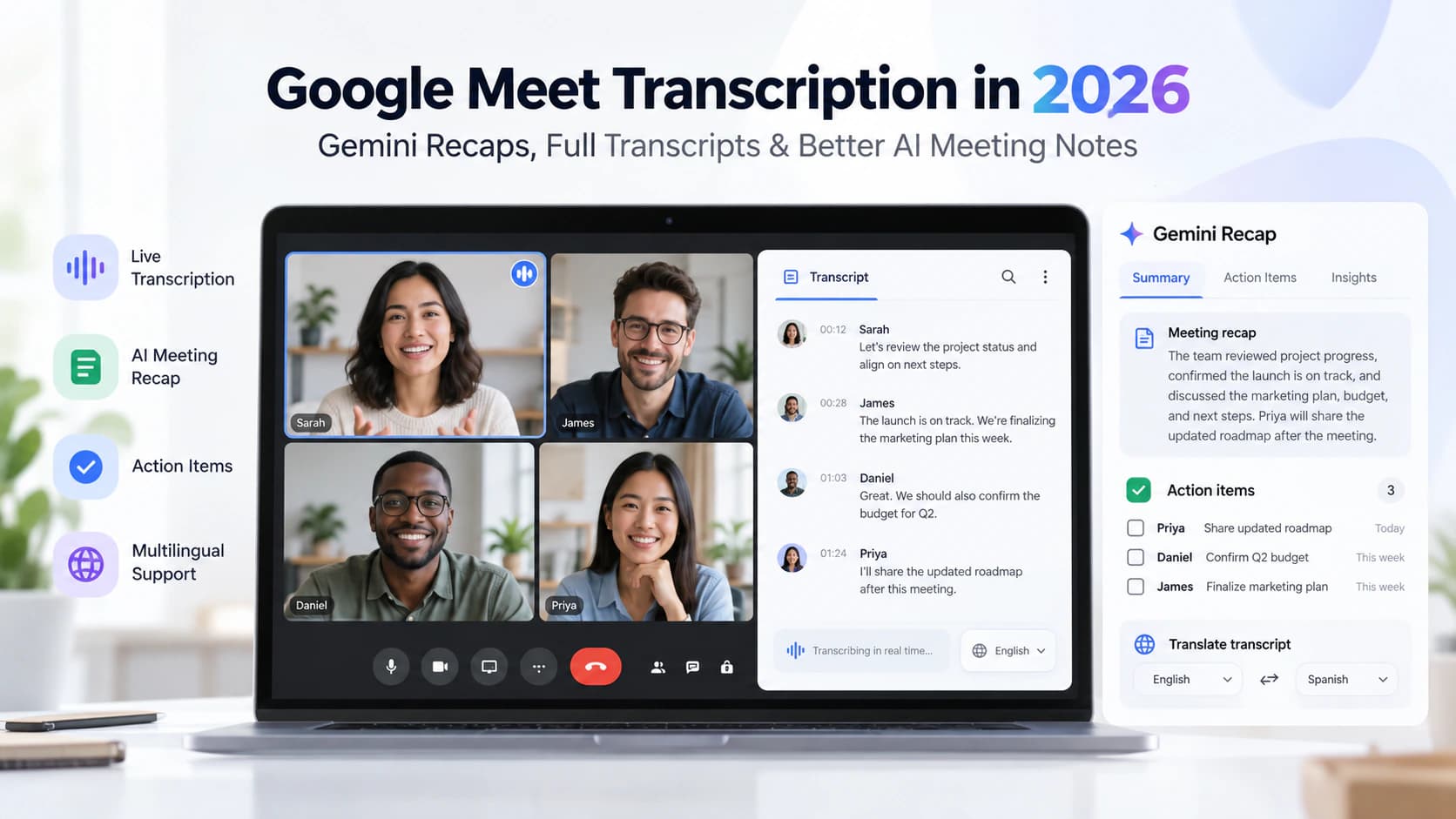
Google Meet transcription is no longer just a basic transcript toggle. In 2026, Google has turned Meet into a broader meeting-intelligence workflow: native transcripts, Gemini-powered “Take notes for me,” Ask Gemini inside meetings, meeting recaps in Google Chat, and post-meeting “next steps” that help teams turn discussion into action. For teams already deep inside Google Workspace, that is a meaningful upgrade. But it is not the same thing as a universal transcription solution, and it is not always the best fit for multilingual or cross-platform teams. Google’s transcript guide, Google’s note-taking guide, Google Chat recap requirements, Google’s October 12 announcement
Speechyou approaches the problem from a different angle. Its homepage positions it as a browser-based AI transcription and meeting recorder for voice notes, meetings, audio and video, with support for 1,700+ languages, AI summaries and action items, and export formats including TXT, SRT, VTT and JSON. It also explicitly supports meeting capture for Zoom, Teams and Google Meet, which makes it useful when your workflow extends beyond the Google ecosystem. Speechyou features
For the broader process of working from a recorded call, see how to transcribe meeting audio to text. This guide explains how Google Meet transcription works in 2026, what Gemini actually adds, where Google Meet still has limits, and when Speechyou is the better choice, especially if you need broader language coverage or more flexible output.
What Google Meet transcription includes in 2026
Google currently separates meeting intelligence into a few related features.
First, there is Transcripts. Google says the Transcripts feature is available on computer, laptop and Android, and supports eight languages: English, French, German, Italian, Japanese, Korean, Portuguese and Spanish. Meeting transcripts are saved in the meeting organizer’s Google Drive inside the “Google Meet” folder, with a sub-folder per meeting. Google’s transcript guide
Second, there is “Take notes for me”. This is the Gemini-powered note-taking layer. Google says it requires an eligible Google Workspace edition or Google AI plan. It supports the same eight languages, but only one language at a time, and Google explicitly says that multiple languages spoken in the same meeting are not currently supported. “Take notes for me” can generate organized notes, provide a “Summary so far” for late joiners, and send the organizer a recap link after the meeting. Google’s note-taking guide
Third, there is Ask Gemini in Google Meet. Google describes this as an in-meeting assistant that can summarize ongoing discussion, recap what someone said, and list key takeaways, decisions and action items. Like “Take notes for me,” it requires an eligible Google Workspace subscription, supports the same eight languages, and works in one language at a time. Google’s Ask Gemini guide
Fourth, Google has added meeting recaps in Google Chat. In its October 19, 2026 Workspace Updates post, Google announced that meeting recaps can include a meeting summary, links to the full Gemini notes document, the recording and transcript, plus key decisions and action items. The rollout started October 16 for Rapid Release and October 27 for Scheduled Release. Google’s Chat Help page adds an important detail: the recap appears in the meeting’s group chat if “Take notes for me” was started and there is a chat message, and a recap will not be posted if “Send notes to” is set to “Hosts and co-hosts only.” Google’s October 19 announcement, Google Chat recap requirements
Finally, Google announced post-meeting next steps on October 12, 2026. According to the official Workspace Updates post, this lets users act on meeting outputs after the call, starting with drafting a follow-up email in Gmail or exporting action items to Google Tasks. Google notes that “Take notes for me” must have been enabled during the meeting for these routines to appear. Google’s October 12 announcement
The big takeaway is this: in 2026, Google Meet transcription is not one feature. It is a stack of transcription, AI notes, meeting recaps, and follow-up actions.
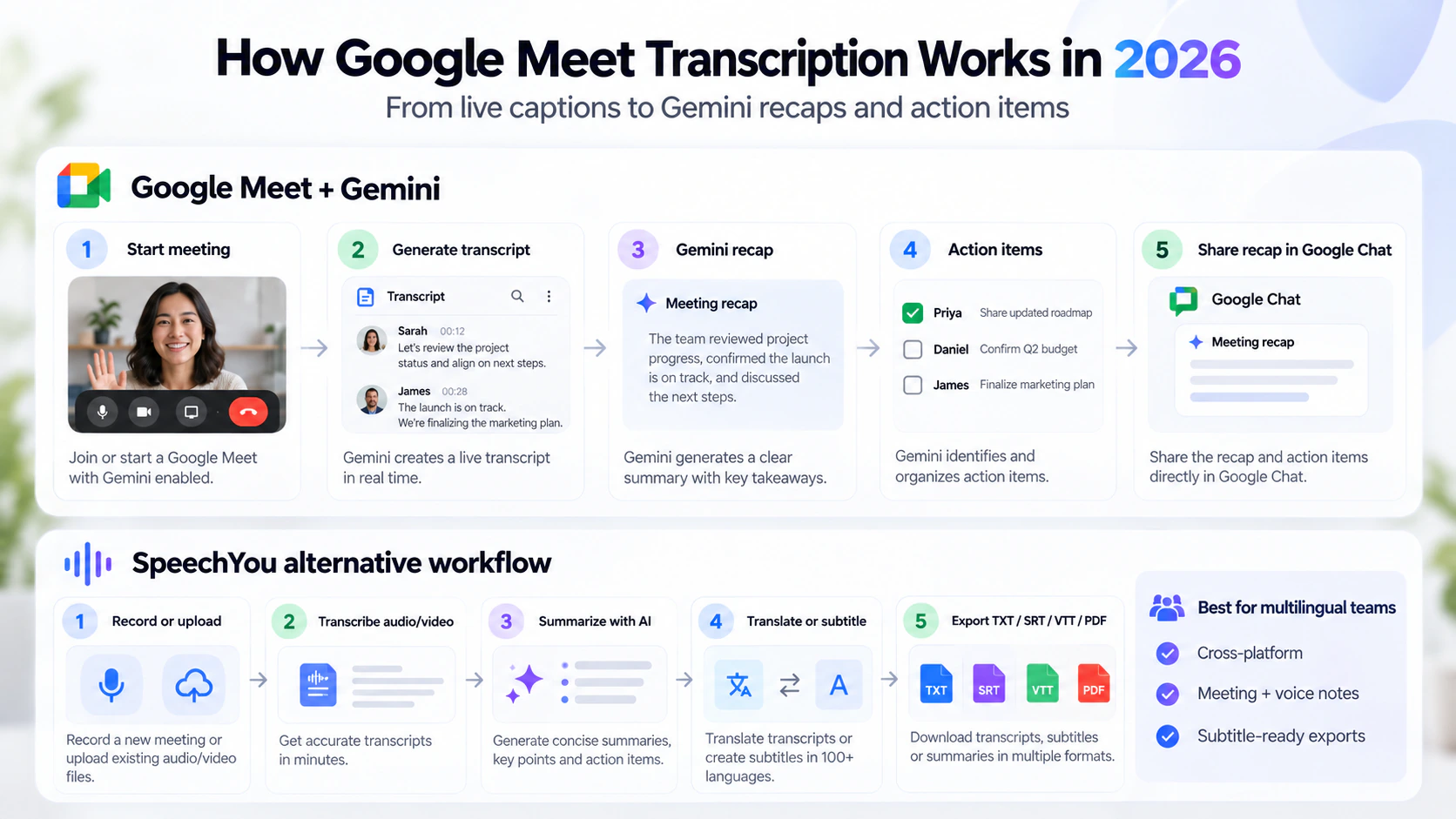
How Google Meet transcription works step by step
At a practical level, Google’s transcript workflow is straightforward.
If you want a transcript, you join or start a meeting in Google Meet, open Meeting tools, choose Transcribe, and start transcription. Google says only spoken words are included in the transcript; to capture chat messages, you need to record the meeting. When the meeting ends, the transcript is saved to the organizer’s Google Drive in the “Google Meet” folder. Google’s transcript guide
If you want Gemini-powered notes, you turn on “Take notes for me” from Google Calendar, the pre-meeting green room or inside the live Meet call. Google says hosts can adjust who receives the notes, the note length, the meeting language, and in some cases which sections appear, such as summary, decisions, next steps and details. After the meeting, Google creates a notes document in Drive and attaches it to the Calendar event. The notes document contains Quick notes and Full notes tabs. Quick notes focuses on the most important takeaways and action items, while Full notes includes a fuller summary, decisions, action items and details. Google’s note-taking guide
That matters because it changes the user experience. A plain transcript answers “what was said?” A Gemini notes document tries to answer “what matters?”
What is new in 2026
The October 2026 updates are important because they push Google Meet further into workflow territory.
The first new layer is meeting recaps in Google Chat. This reduces context switching. Instead of opening Drive, hunting down the notes doc and separately finding the transcript, users can see a recap card in the chat stream after the meeting, along with links to supporting artifacts. For teams already living in Google Chat, this makes follow-up faster. Google’s October 19 announcement, Google Chat recap requirements
The second is post-meeting next steps. Google is trying to close the gap between meeting output and execution. If AI notes identify action items, Google now wants to help you turn those into a draft follow-up email or a Google Tasks list. It is a small step, but strategically important: Meet is becoming a source of structured work, not just a video call. Google’s October 12 announcement
Together, these updates connect the meeting record to the places where a team follows up: its chat, email and task list.
Where Google Meet still has limits
Google Meet has clear strengths, but also clear boundaries.
Check the language support for the exact feature
Google’s official help pages for Transcripts, “Take notes for me,” and Ask Gemini all point to essentially the same supported language set: English, French, German, Italian, Japanese, Korean, Portuguese and Spanish. Google also says the note-taking and Ask Gemini experience supports one language at a time, and mixed-language meetings are not currently supported. Google’s transcript guide, Google’s note-taking guide, Google’s Ask Gemini guide
That is fine for a monolingual English-speaking team. It is a real limitation for international companies, agencies, researchers or multilingual customer-facing teams.
Live speech translation has a different language list
On October 22, Google announced speech translation across 63 languages, including automatic language detection. That announcement concerns translated speech and synchronized translated captions during eligible calls. It does not say that the saved transcript and Gemini notes features now support all 63 languages.
The rollout also matters: Rapid Release began October 22, while Scheduled Release was due to begin November 2. As of this article’s October 29 publication, teams should check their own edition and rollout state. A live interpretation feature and a reusable written transcript solve related but distinct problems.
Check your Google Workspace plan
Google is explicit that Gemini meeting features require an eligible Workspace edition or Google AI plan. Transcript availability is also edition-based. So while Google Meet is convenient, it is not a universal, standalone transcription solution for every team. Google’s note-taking guide, Google’s transcript guide
Native meeting transcripts are centered on Google Meet
Google Meet transcripts are naturally centered on Google Meet. That sounds obvious, but it matters. If your team also works in Zoom, Microsoft Teams, phone-recorded interviews, voice notes or uploaded podcasts, you may need a broader workflow. Google does offer a strong native experience within Workspace. Its note-taking guide also describes in-person and on-the-go use, so meeting notes are not limited to a conventional video call. That is still a different decision from choosing a workspace for uploaded recordings, subtitle exports and conversations captured across multiple meeting platforms. Speechyou features
Check recap requirements and rollout status
Google’s October 19 announcement lists Business Standard, Business Plus, Enterprise Standard, Enterprise Plus and Frontline Plus. Its rollout schedule allows up to 15 days for visibility. The current Chat Help page also requires Google Workspace smart features and the relevant note-sharing settings. Availability can depend on plan, administrator settings and rollout state. Google’s October 19 announcement, Google Chat recap requirements
Google Meet + Gemini vs Speechyou
Here is the clearest way to think about the comparison.
Choose Google Meet + Gemini if:
- your organization already runs heavily on Google Workspace
- most meetings happen in Google Meet
- your main need is native transcripts and AI notes inside that ecosystem
- your working languages are covered by Google’s supported language list
- you want recap and follow-up features connected to Google Chat, Calendar, Gmail and Tasks
Choose Speechyou if:
- you need broader language support
- you work across Google Meet, Zoom and Microsoft Teams
- you want to upload audio or video files, not only live meetings
- you need subtitle-style outputs such as SRT or VTT
- you want a single workflow for voice notes, meetings, recordings and multilingual transcription
Speechyou’s homepage describes a browser recorder that captures microphone and system audio. Its Meeting mode works for Zoom, Teams and Google Meet. It also advertises 1,700+ language support, AI summaries and action items, and export formats including TXT, SRT, VTT and JSON. Speechyou features
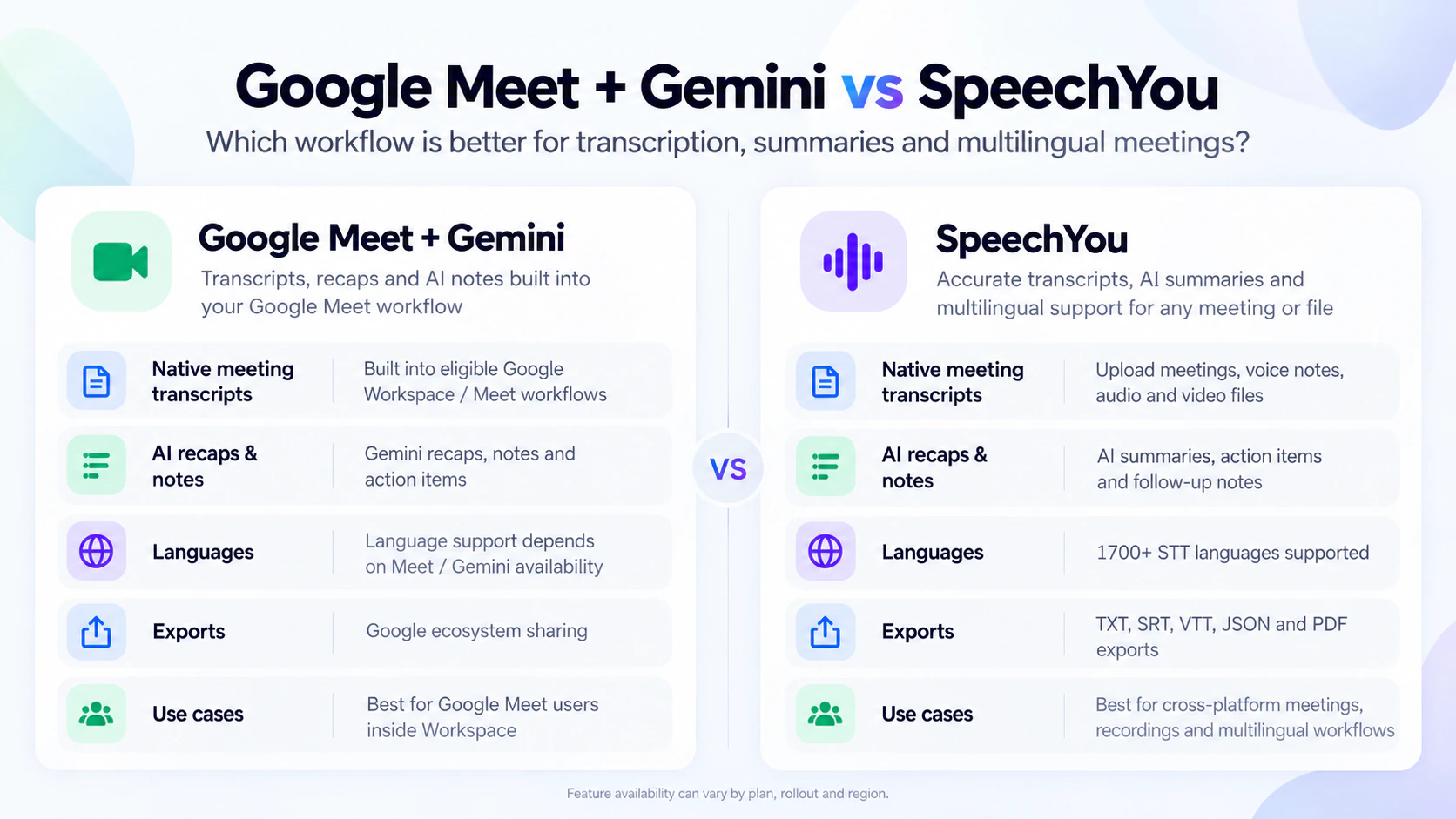
Comparison summary
Scroll horizontally to compare all columns.
| Area | Google Meet + Gemini | Speechyou |
|---|---|---|
| Core strength | Native Meet transcripts and Gemini notes inside Workspace | Cross-platform AI transcription and meeting capture |
| Saved transcription / notes languages | Checked help pages list 8 for Transcripts, “Take notes for me” and Ask Gemini | 1,700+ language catalog; test the exact language and model |
| Mixed-language written notes | “Take notes for me” and Ask Gemini support one language at a time | Test your actual language mix; a large catalog does not guarantee code-switching quality |
| Live speech translation | Separate feature: 63 languages announced October 22, with rollout conditions | Transcript translation is a separate output workflow |
| Capture source | Google Meet meetings | Voice notes, uploaded audio/video, Zoom, Teams, Google Meet |
| AI outputs | Notes, summaries, decisions, action items, recaps | Summaries, action items, AI chat over transcripts |
| Export formats | Native Google docs / Drive / Chat workflow | TXT, SRT, VTT, JSON |
| Best for | Workspace-first teams | Teams that need flexibility, multilingual support and subtitle-ready outputs |
Comparison sources: Google’s note-taking guide, Google’s transcript guide, Google’s Ask Gemini guide, Google Chat recap requirements The Speechyou feature overview documents its recording and export options; Google’s October 22 speech-translation announcement covers the separate live interpretation feature.
Why multilingual transcription is the real differentiator
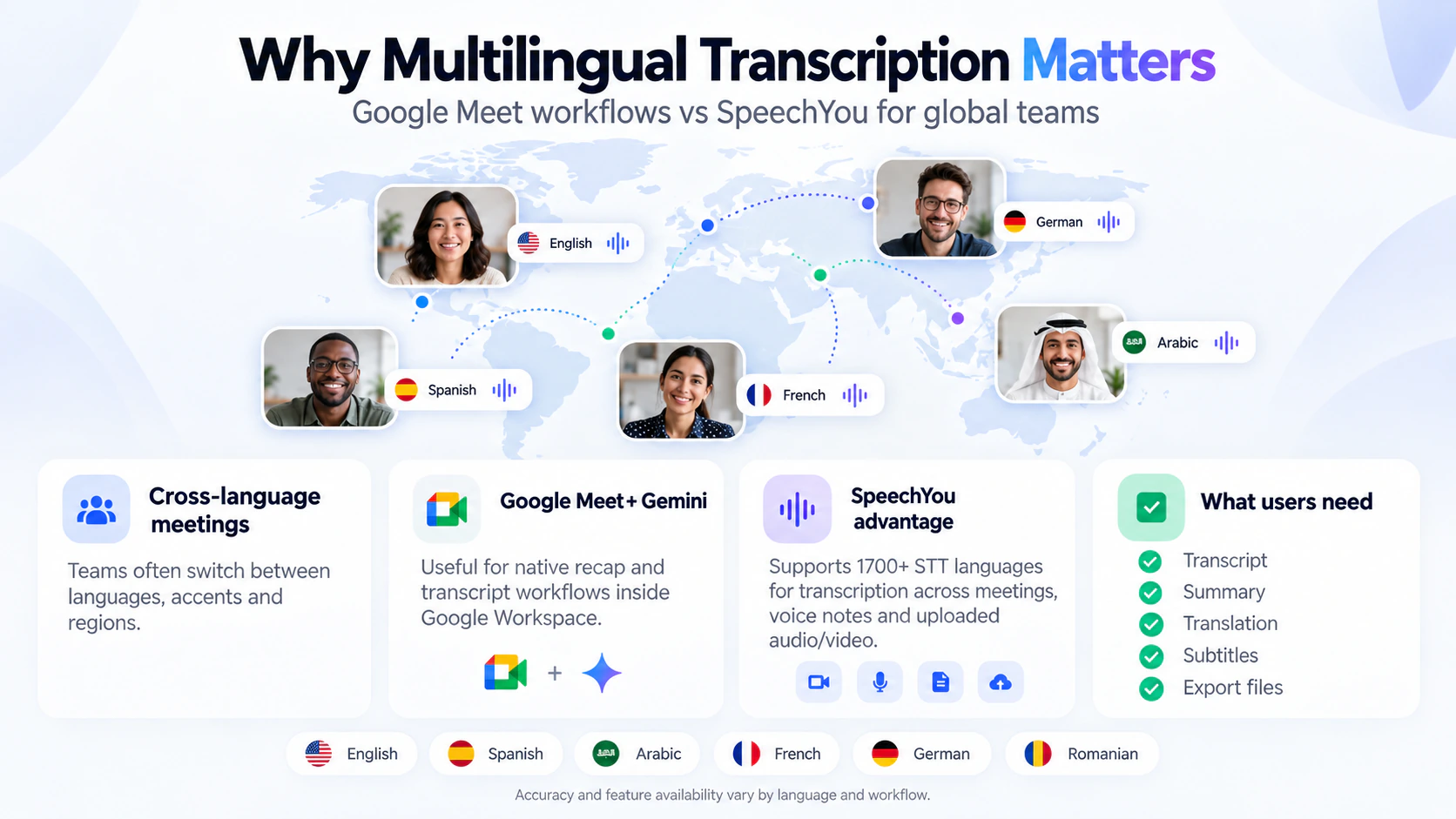
Many users do not only want “Google Meet transcription.” They want a tool that works when a meeting includes English plus Spanish, or French audio that later needs English subtitles, or a Zoom sales call that needs to be turned into a recap, action list and SRT caption file.
For saved transcripts and Gemini note-taking, the checked help pages still list eight languages. The one-language-at-a-time restriction applies to “Take notes for me” and Ask Gemini. Live speech translation has its own, broader language coverage; it should be evaluated separately from the written record you need after the call. Google’s note-taking guide, Google’s Ask Gemini guide
Speechyou’s positioning is much broader. Its homepage says it transcribes voice notes, meetings and audio in 1,700+ languages, auto-detects language, adds timestamps, supports translation workflows, and exports in formats useful for both text and subtitle use cases. That creates a very different value proposition: not “Google Meet with AI notes,” but “a broader multilingual transcription workspace.” Speechyou features
That distinction changes the buying decision: do you mainly need an assistant connected to your meeting platform, or a workspace for the recordings and content you produce across tools?
A catalog count is a starting point, not a quality guarantee. Speechyou’s support for many languages does not establish equal accuracy in every dialect or automatic preservation of every language switch within one recording. Try a short sample containing your actual speakers, language pair and terminology, then review the transcript before processing the full recording. The language directory and MultiLingual Pro guide help you plan that test.
Best workflows by use case
Best for internal Google Workspace meetings
If your team lives in Gmail, Calendar, Chat, Docs and Meet, Google’s native stack is appealing. Use Transcripts when you need a verbatim record. Turn on “Take notes for me” when you need summaries and action items. Use meeting recaps in Google Chat to keep the team aligned after the call. Use post-meeting next steps when you need follow-up emails or tasks. Google’s transcript guide, Google’s note-taking guide, Google Chat recap requirements, Google’s October 12 announcement
Best for multilingual or cross-platform teams
If your meetings happen across Zoom, Teams and Google Meet, or if you also process interviews, webinars, podcasts and voice notes, Speechyou is likely the more practical workflow. Its browser recorder, cross-platform meeting capture, 1,700+ languages and TXT/SRT/VTT/JSON exports make it better suited for content repurposing, multilingual documentation and subtitle generation. Speechyou features
If your workflow starts on a phone, our guide to transcribing a voice memo to text covers the file-to-transcript route. For Mac-based work, see speech-to-text software for Mac.
Best for subtitle and content workflows
Google Meet’s strength is collaboration inside Workspace. Speechyou’s strength is turning audio into flexible assets. If you need captions, subtitle files, or structured exports for editorial or production use, Speechyou’s export options are more directly aligned with that workflow. Speechyou features
A practical recommendation
Start with the job you need the tool to do.
If you need a native meeting assistant inside Google Workspace, Google Meet + Gemini is increasingly strong in 2026.
If you need a multilingual transcription and output workflow that goes beyond Google Meet, Speechyou is the better fit.
For many teams, the smartest stack is hybrid:
- use Google Meet’s native tools for internal Workspace meetings
- use Speechyou when you need broader language support
- use Speechyou when you need Zoom / Teams capture
- use Speechyou when you need subtitle exports or flexible transcript files
Choose around the recordings and outputs you actually use, and test the workflow on a representative meeting before relying on it.
Conclusion
Google Meet transcription in 2026 is significantly better than it was a year ago. Native transcripts, Gemini-powered notes, Ask Gemini, Google Chat recaps and post-meeting next steps make Meet a much more capable collaboration product. For Google Workspace-first teams, this is a real advantage. Google’s transcript guide, Google Chat recap requirements, Google’s October 12 announcement
But Google’s current official limitations still matter. Language support is narrower, AI note-taking works one language at a time, and the overall workflow is designed around Google Meet and Google Workspace. If your team operates across platforms or needs saved transcripts in languages outside those lists, a broader transcription product may serve you better. Live speech translation is a separate Google feature with wider language coverage. Google’s note-taking guide, Google’s Ask Gemini guide
Speechyou is useful when the job goes beyond a native Workspace transcript: capturing recordings across platforms, working with a broad language catalog, reviewing AI summaries and action items, and exporting text or subtitles. For multilingual and content teams, the practical next step is to try that complete workflow with their own audio. Speechyou features
Need transcripts beyond Google Meet? Try Speechyou for browser meeting capture, AI summaries and a broad multilingual catalog. Review the words, verify action items, and export the format your team needs. You can also explore Speechyou AI transcription and more practical guides on the Speechyou blog.
FAQs
Does Google Meet have transcription in 2026?
Yes. Google’s transcript guide lists computer, laptop and Android support, eight supported languages, and eligible Workspace editions. Check the organizer’s edition and administrator settings before your meeting. Google’s transcript guide
What is the difference between Google Meet Transcripts and “Take notes for me”?
Transcripts provide an automated written record of spoken content. “Take notes for me” is the Gemini-powered layer that creates organized notes, can provide “Summary so far,” and generates Quick notes and Full notes after the meeting. Google’s note-taking guide
Can Google Meet handle multilingual meetings?
It depends on the feature. “Take notes for me” and Ask Gemini document one language at a time. Google separately announced live speech translation across 63 languages on October 22, 2026. That live translation capability should not be treated as proof of equivalent saved-transcript or AI-note coverage. Google’s note-taking guide, Google’s Ask Gemini guide
Where are Google Meet transcripts saved?
Google says meeting transcripts are saved in the meeting organizer’s Google Drive inside the “Google Meet” folder, with sub-folders for each meeting. Google’s transcript guide
When is Speechyou a better choice than Google Meet?
Speechyou is a better fit when you need broader language coverage, cross-platform meeting capture, uploaded audio/video transcription, subtitle exports, or a workflow that covers more than native Google Meet meetings. Choose it when those sources and export formats match the job, then evaluate a sample of your own recording. Speechyou features
Sources and research notes
Product documentation checked on 29 October 2026. Speechyou’s product team wrote this comparison. Recommendations describe workflow fit; we did not run a controlled accuracy or latency benchmark. Generated illustrations explain concepts and are not product screenshots.
- Google Meet Help: Use Transcripts with Google Meet.
- Google Meet Help: “Take notes for me”.
- Google Meet Help: Calendar and Meet settings for “Take notes for me”.
- Google Meet Help: Ask Gemini in Google Meet.
- Google Chat Help: Get meeting recaps with Gemini.
- Google Workspace Updates: post-meeting next steps, October 12, 2026.
- Google Workspace Updates: meeting recaps in Google Chat, October 19, 2026.
- Google Workspace Updates: speech translation expands to 63 languages, October 22, 2026.
- Speechyou: recording, transcription, AI chat and export features.


