AI transcription has made it easier to turn meetings, interviews, podcasts, lectures and videos into text. But generating a transcript and producing a transcript you can trust are two different tasks.
A transcription tool might recognize most of a conversation correctly while still getting a customer's name wrong, combining two speakers into one, missing a negative word, or placing a subtitle several seconds too early. Those mistakes matter when a transcript becomes a published article, a customer research record, a meeting summary or a caption file.
That's where a transcript editor comes in.
The best transcript editors let you review recognized speech against the original recording, correct errors, identify speakers, check timestamps and export the result in a useful format. Some go further: they let you cut or rearrange the underlying video simply by editing words on the page.
These are different capabilities, and choosing the right one can save you from paying for a complex video production platform when you only need accurate text.
In this guide, we'll compare six transcript editing options, explain what each does well and walk through a practical process for correcting AI-generated transcripts. We'll also cover the mistakes that automated tools can miss and the difference between editing transcript text and editing audio or video.
Quick answer: What is the best transcript editor?
The best transcript editor depends on what you want to produce.
Scroll horizontally to compare all columns.
| Tool | Best for | Important distinction |
|---|---|---|
| SpeechYou | Transcribing, correcting and exporting recordings | Focused on editable transcripts and reusable text/subtitle files |
| Descript | Editing podcasts and video by editing text | Transcript edits can change the underlying media |
| Kapwing | Online video editing, subtitles and collaboration | Combines transcript editing with a video workspace |
| Rev | Reviewing transcripts while listening to audio | Offers detailed correction and review tools |
| Trint | Collaborative editorial and interview transcription | Designed around newsroom and team workflows |
| Otter.ai | Meeting transcripts and searchable conversation notes | Primarily optimized for meeting capture and follow-up |
Choose SpeechYou if your main goal is to turn recordings into editable text, correct the wording and export transcripts or subtitle files.
Choose Descript if you want to remove sentences from a podcast or video by deleting the corresponding text.
Choose Kapwing if you need transcript-based editing alongside video composition, captions and visual content.
Choose Rev if detailed transcript review and its transcription service options are central to your workflow.
Choose Trint if your organization needs collaborative review of interviews and editorial recordings.
Choose Otter.ai if your primary task is capturing meetings and finding information in previous conversations.
These recommendations are based on documented product capabilities and intended workflows, not a controlled accuracy benchmark. We have not conducted side-by-side transcription tests for this article.
What is a transcript editor?
A transcript editor is software that allows you to review, correct, format and sometimes reorganize a written transcription of audio or video.
Imagine recording a 45-minute customer interview. An AI transcription service processes the recording and returns the following:
Speaker 1: We need to update the cell force integration by Friday.
The actual speaker said:
Speaker 1: We need to update the Salesforce integration by Friday.
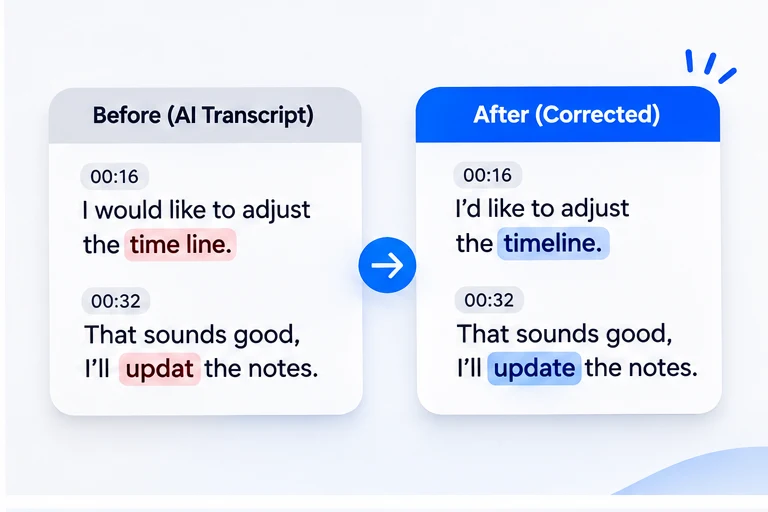
A transcript editor allows you to replace the misrecognized phrase with the correct product name.
Depending on the editor, you may also be able to play the corresponding audio, see timestamps, change the speaker label, highlight a useful quote or export the corrected transcript.
Transcript correction versus text-based media editing
This is the most important distinction when comparing transcript editing software.
Transcript correction changes the written record. Correcting "cell force" to "Salesforce" makes the text accurate without changing what the original speaker said.
Text-based media editing changes the audio or video timeline. In a product such as Descript, deleting a sentence from the editing script can remove the corresponding section of recorded media.
Descript provides a separate correction mode so users can fix recognition errors without unintentionally cutting their footage.
These editing operations are not interchangeable.
If you're preserving a research interview, you usually want to correct the transcript while retaining the original recording. If you're producing a polished podcast episode, you may want to remove repeated phrases, long pauses or irrelevant sections from both the transcript and the media.
A third operation, editorial rewriting, changes the wording for readability. This can be appropriate when turning an interview into a blog post, but the rewritten passage should not be presented as an exact verbatim quotation.
Keeping these three purposes separate is essential.
Why transcript editing still matters in 2026
Speech recognition models continue to improve, but accuracy alone does not make every generated transcript publication-ready.
Recent product developments show that companies are investing in the editing and alignment layer as well as speech recognition.
In its November 6, 2026 release roundup, Descript announced an updated model for aligning recognized words to their positions in the audio, alongside improvements in transcription processing speed.
That is a meaningful development for editors.
A transcript can contain the correct words while placing them at the wrong moments. If you use that transcript to produce subtitles or edit a video, timing errors become visible even when the text itself looks accurate.
The same release also described improved support for moving comments into professional editing timelines. This reflects a broader product direction: transcripts are increasingly working documents that connect recording, review, editing and publishing workflows.
There are several reasons human review remains useful.
Proper nouns are unusually costly mistakes
Names, organizations, product identifiers and specialized terminology often matter more than ordinary filler words.
Consider these examples:
- "Notion" recognized as "notion."
- "Salesforce" recognized as "sales force."
- "Nadia" recognized as "media."
- "SRT" recognized as "S R T" or another similar-sounding phrase.
Some errors are harmless in casual reading. Others make documents difficult to search or can change the meaning of an important statement.
Numbers and negations require special attention
A transcript that turns "fifteen" into "fifty" can distort a budget discussion.
A missed "not" can reverse a decision.
When reviewing meeting transcripts, prioritize quantities, dates, commitments and negative statements rather than treating every word as equally important.
Speaker labels can be wrong
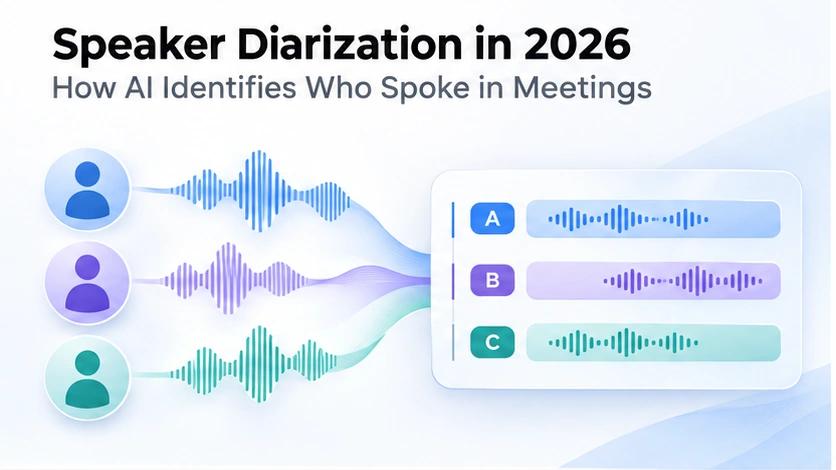
Speaker diarization attempts to identify when different people speak. It does not automatically establish a person's identity with certainty.
Overlapping speech, interruptions, similar voices, background noise and short responses can cause attribution errors.
A transcript may get every word right but assign a critical decision to the wrong participant.
Good subtitles need more than correct words
Caption files also need usable timing, segmentation and readable line breaks.
A subtitle that remains visible long after the speaker finishes can be distracting. A caption that disappears too quickly may be difficult to read.
For published video, the review process must consider both the recognized text and how it appears during playback.
The six best transcript editors compared
1. SpeechYou — Best for transcription-first editing and exports
SpeechYou is designed around turning recordings into searchable, editable text.
Rather than requiring users to work inside a comprehensive video editor, it provides a workflow for capturing or uploading recordings, generating transcripts, reviewing the results and exporting them.
According to SpeechYou's published documentation, users can open a completed recording, select Edit transcript and correct names, terminology or misheard words.
Its documented capabilities include audio and video transcription, browser recording, multilingual speech recognition, AI summaries, action items and transcript exports.
Supported export options include TXT, SRT, VTT and JSON. SpeechYou also documents an editable Microsoft Word (.docx) workflow.
What SpeechYou does well
The strongest advantage of a transcription-first product is that the editing process stays centered on the spoken content.
For a business meeting, that usually means:
- Capture or upload the recording.
- Generate the transcript.
- Correct terminology, names and consequential wording.
- Review speaker attribution and timestamps where needed.
- Export the corrected record.
For an interview, the same workflow can produce an editable document for review or a source transcript for an article.
For video, SRT or VTT export lets you move the reviewed text into a separate captioning or publishing workflow.
SpeechYou's public documentation also describes support for approximately 1,700 languages and language/script options through its multilingual transcription offering. That is an unusually broad coverage claim, but it should not be interpreted as equal accuracy for every language or accent.
Language coverage and transcription quality are separate questions. Less commonly supported languages may need additional human review, particularly for code-switching, specialized terminology or poor recordings.
Where SpeechYou is not the right choice
SpeechYou is not presented here as a full text-based video editor.
If you need to remove a sentence and automatically cut the corresponding video footage, a product such as Descript or Kapwing is more directly suited to that task.
Likewise, if your production requires frame-accurate broadcast deliverables, complex subtitle styling, multi-track video editing or extensive editorial collaboration, verify whether a dedicated video or subtitle editor is required.
Pricing
SpeechYou's publicly listed Solo plan is $15/month, with a yearly option listed at $67/year as of November 23, 2026.
The pricing page advertises unlimited transcriptions, subject to the service's applicable plan terms, file limits and policies, plus AI summaries, workspaces and supported exports.
Check current SpeechYou pricing before purchasing because offers and plan details can change.
Best for: Interviews, meeting recordings, voice notes, lectures, multilingual audio and users who want corrected transcripts rather than a complete video production suite.
Try it: Upload or record audio with SpeechYou.
2. Descript — Best for editing audio and video through text
Descript approaches transcript editing as part of a much broader media production workflow.
Users upload or record audio and video, and Descript generates a transcript connected to the media timeline.
The key feature is its text-based editing model: deleting or rearranging script text can edit the corresponding recording.
This makes it attractive for podcasters, video marketers, educators and content teams that need to remove repetitions, reorder content and produce finished media.
Descript also offers tools for filler-word removal, audio enhancement, captions, collaborative review and AI-assisted editing.
Transcript correction in Descript
One detail is easy to overlook: editing the script and correcting recognition errors are separate operations.
Descript documents a Correct mode that allows users to fix transcription mistakes while preserving the connection to the original media. Its broader editing workflow supports changing the recording through text edits.
If an automated transcript says "sales force" while the speaker clearly said "Salesforce," you should correct the recognition error rather than cut that phrase from the recording.
If the speaker repeats the same paragraph twice and you want to remove the second take, a media edit may be appropriate.
Descript's editor makes both kinds of work possible, but the distinction is important.
Strengths and limitations
Descript is particularly useful when a transcript is a control surface for video and audio production.
It can be more functionality than necessary for someone who only wants to transcribe an interview and export a Word document.
The product also has usage limits and paid features that depend on the subscription tier.
For current allowances and pricing, consult Descript's website.
Best for: Podcasts, interviews that will become edited video, social content, video tutorials and recording-based content production.
3. Kapwing — Best for online video editing and subtitles
Kapwing's Transcript Editor combines transcription with a browser-based media editor.
Its published feature documentation describes automatically generated transcripts, speaker labels, timestamps, search-and-replace editing and synchronization between transcript text and media.
Users can select a word to navigate to the corresponding moment in the recording.
Kapwing also supports cutting portions of a recording by deleting transcript text, making it useful for video producers who want to edit dialogue without manually navigating the entire timeline.
Where Kapwing stands out
Kapwing combines transcript editing with video composition and subtitle workflows.
That is helpful when the final product is a social video, online course, interview clip or branded presentation.
Its subtitle workflow can produce files including SRT and VTT. The platform also offers collaborative features and a broader video editing environment.
For creators producing a finished captioned video rather than a standalone transcript, these integrated tools can reduce the number of applications needed.
Limitations to consider
Kapwing's free editing and transcription allowances are limited. Its public editor page describes a free transcription allowance and plan-dependent limitations.
Long recordings, media export requirements and advanced editing features may require an upgrade.
If you only need accurate text and downloadable subtitle files, it may be worth comparing a simpler transcription-first service before committing to a full video workspace.
Best for: Social videos, course recordings, collaborative video editing and caption production.
4. Rev — Best for detailed transcript review
Rev offers transcription services and a transcript editor that supports reviewing recorded speech while listening to the source audio.
Its official transcription editor documentation describes several useful correction and review capabilities.
These include editing words, adjusting speaker names, searching and replacing text, managing timestamps, highlighting passages, leaving comments, bookmarking sections and exporting transcripts.
These features are particularly valuable when a transcript needs a formal review process.
A researcher may want to identify uncertain wording. A journalist may need to verify quotations. A business analyst may want to bookmark sections containing decisions or requests.
Rev also provides human transcription services separately from its automated transcription options.
When Rev makes sense
Choose Rev when you need a review-oriented transcription workflow or want to evaluate human transcription alongside automated options.
However, automated and human transcription have different pricing and turnaround characteristics.
Pay attention to which service you're buying, what editing functionality your plan includes and whether specialist accuracy or certification requirements apply.
Best for: Detailed transcript review, research material, interviews and organizations evaluating both automated and human transcription services.
5. Trint — Best for collaborative editorial workflows
Trint focuses on transcription as part of an editorial and collaborative process.
It is particularly relevant to media organizations, journalists and teams working with recorded interviews or field material.
These environments often require more than correcting individual words.
An editor may need to search multiple interviews, identify source quotations, collaborate with colleagues and organize material for a story.
In those cases, permissions, review processes, shared workspaces and editorial organization can matter as much as the initial speech recognition.
Why choose Trint?
Trint is worth considering when transcription is part of a larger newsroom or team content workflow.
Before choosing it, verify the precise collaboration and export capabilities available in the intended plan.
Its functionality may be excessive for a solo user converting occasional recordings into plain text.
Best for: Journalists, media teams, documentary research and shared editorial workflows.
6. Otter.ai — Best for meeting notes and searchable conversations
Otter.ai is primarily oriented toward capturing meetings and turning conversations into searchable records.
That makes it relevant for teams who routinely need to revisit meeting discussions, summarize decisions and find information from previous calls.
Its value is not only in the editable transcript but also in the wider meeting-note experience.
When Otter is a good fit
Choose Otter when meeting capture and follow-up are more important than video production.
For meetings involving multiple participants, you should still review speaker identities, names, numbers and consequential decisions.
As with any automated note-taking system, AI-generated summaries should be checked against the recording before they are treated as authoritative records.
If multilingual file transcription, extensive language/script options or export-oriented workflows are your highest priorities, compare those capabilities against SpeechYou rather than assuming all AI meeting assistants offer the same coverage.
Best for: Frequent meetings, searchable conversation histories and individual or team note-taking.
How to edit an AI-generated transcript step by step
A reliable editing process does not require checking every word with equal intensity.
The goal is to identify and correct the mistakes most likely to change meaning, confuse readers or cause problems in the destination format.
Here is a practical workflow using a recorded interview as an example.
Step 1: Keep the original recording
Before making changes, preserve the source audio or video.
The recording is your reference whenever a passage is ambiguous.
If you're editing a podcast or video, make sure the transcript corresponds to the correct version of the source media.
A transcript generated from a rough cut may no longer align with the finished video if sections have been inserted, removed or rearranged.
Use filenames that clearly distinguish source recordings from derived files.
For example:
- customer-interview-original.m4a
- customer-interview-reviewed.docx
- customer-interview-final.srt
This reduces the risk of confusing different versions.
Step 2: Generate the transcript
Upload the recording to your chosen transcription service.
For example, in SpeechYou, create an account and upload a supported audio or video file.
If you're working with a multilingual recording, confirm the available language-selection and transcription options before processing.
A source language that is incorrectly detected can produce unusable text or poor segmentation.
For recordings that contain multiple languages, don't assume the system will interpret every language switch correctly.
You may need to review code-switched sections independently.
Step 3: Correct names and technical terminology first
Names and specialized terms deserve priority because a transcription model may replace unfamiliar words with more common phrases.
Suppose an interview contains this statement:
We reviewed the Kubernetes migration and the Supabase authentication issue.
An automated transcript might substitute unrelated everyday words for one or both product names.
Use the original audio to confirm the correct terminology.
If your editor supports search and replace, consistent corrections can be made efficiently across the transcript.
However, review each replacement when the same word could have multiple meanings.
Replacing every occurrence of "notion" with "Notion," for example, may incorrectly capitalize ordinary uses of the word.
Step 4: Review numbers, dates and negative statements
Listen carefully to passages that contain consequential information.
Examples include:
- Financial amounts and percentages
- Dates and deadlines
- Measurements and quantities
- Customer commitments
- Approvals and rejections
- Words such as "not," "never" and "unless"
A sentence that says a team did not approve a project is materially different from one saying the team approved it.
If a passage remains unclear after replaying it, avoid guessing.
Use an appropriate uncertainty marker, such as [inaudible] or [unclear], according to the transcript's intended style.
For formal records, document uncertain passages rather than silently substituting likely wording.
Step 5: Correct speaker labels
Multi-person transcripts should be reviewed for attribution errors.
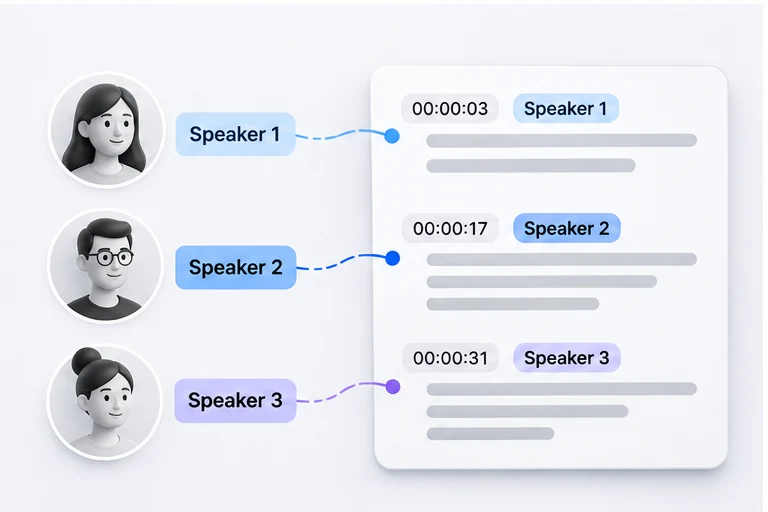
An AI system may generate generic labels such as Speaker 1, Speaker 2 and Speaker 3.
Depending on the software and recording, you may be able to replace them with verified names.
Only assign a real person's name when the voice can be identified with sufficient confidence.
Pay particular attention to:
- Interruptions
- Short acknowledgments
- Similar-sounding voices
- Participants joining late
- Background conversations
- Overlapping speech
If attribution remains uncertain, preserve a neutral label rather than inventing certainty.
For more detail, read SpeechYou's speaker diarization guide.
Step 6: Decide whether to preserve filler words
There is no universal rule for removing "um," "uh," repetitions or unfinished sentences.
The correct approach depends on the intended use.
For a research interview, verbatim wording may be important because hesitation or repetition can carry meaning.
For a meeting summary, readers may prefer cleaned text that preserves decisions and relevant context.
For a published article, you may create an edited quotation or paraphrase, but significant changes must not be presented as exact spoken language.
A useful distinction is:
Verbatim transcript: Preserves the spoken wording, including meaningful disfluencies.
Clean-read transcript: Removes selected fillers and false starts without materially changing meaning.
Editorial adaptation: Rewrites or restructures content for publication and should be distinguished from the underlying transcript.
Keep the original record available whichever approach you choose.
Step 7: Check timestamps against playback
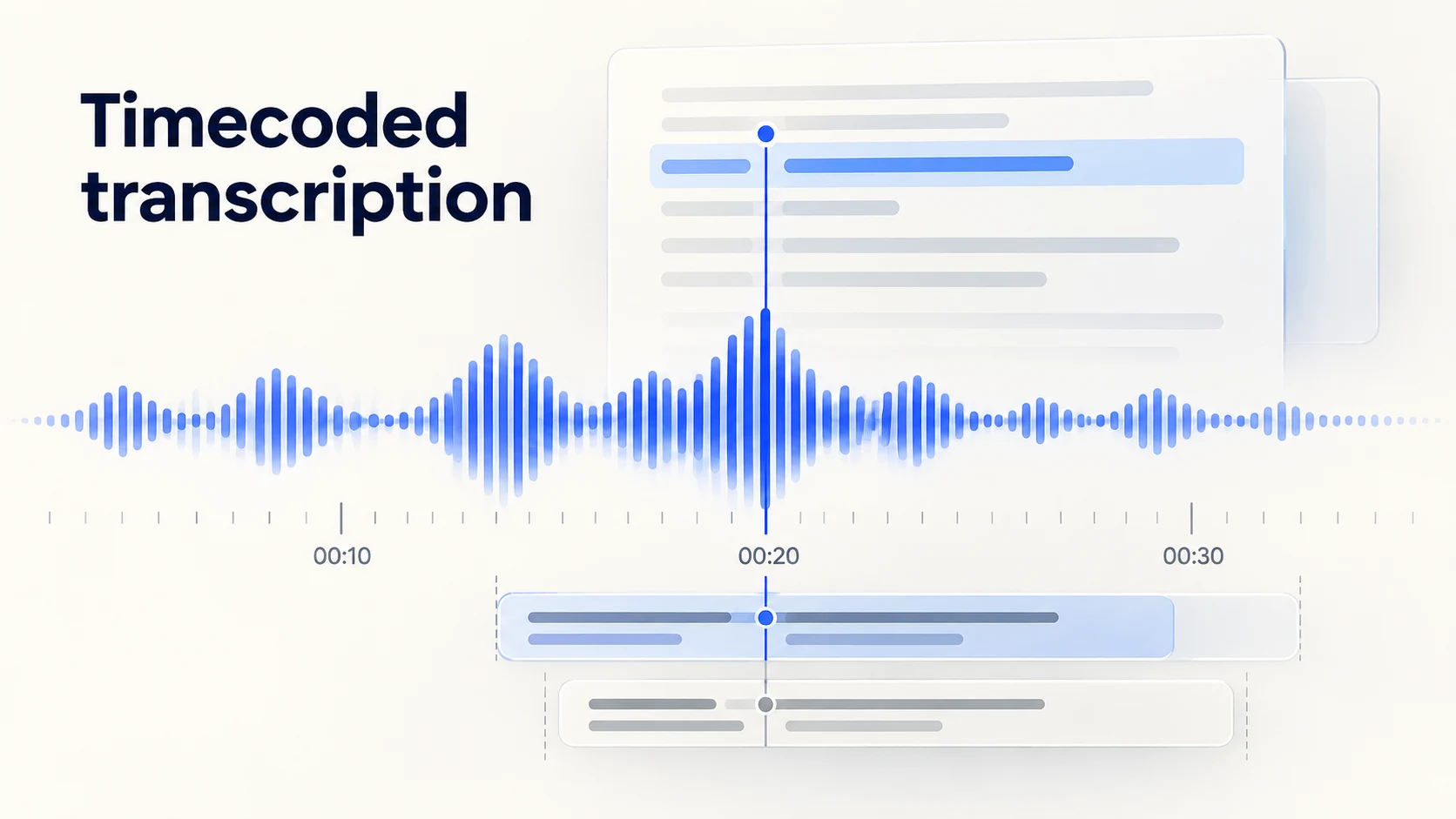
Timestamps connect words or passages to positions in the recording.
But displaying a timestamp does not guarantee accurate alignment.
Check the opening, a section near the middle and a passage near the end.
Then review difficult sections such as interruptions, long silences and fast speech.
If the transcript will become subtitles, inspect the beginning and end of each important caption cue.
A caption with the correct text can still be unusable if it appears at the wrong time.
Step 8: Export the right format
Your final destination determines the most useful export format.
Choose plain text when the transcript will be read or copied.
Choose an editable Word document when colleagues need to annotate or revise the text.
Choose SRT or VTT when you need timed subtitle files.
Choose JSON when a software workflow needs structured information.
SpeechYou's audio-to-Word guide documents how to correct transcript text before exporting a DOCX file.
For subtitles, use its SRT Subtitle Generator or WebVTT Generator.
Finally, open the exported file in the application where it will be used. That last verification catches format and timing problems that may not be obvious in the transcription interface.
An example: Correcting a three-person project meeting
Consider a fictional product team recording a short planning meeting.
The recording contains a project manager, an engineer and a designer.
The following is an illustrative example, not an actual customer recording or result from a product test.
Raw AI transcript
[00:00:03] Speaker 1:
We need to finalize the new on boarding flow.

[00:00:12] Speaker 2:
The cell force integration is not ready.

[00:00:21] Speaker 2:
I can send the revised prototype on Thursday.

[00:00:32] Speaker 1:
We should not launch before the review.
Suppose the original audio confirms the following:
- "on boarding" refers to "onboarding."
- "cell force" refers to "Salesforce."
- The third turn was spoken by the designer, not the engineer.
- The final negative statement is correctly transcribed and should be preserved.
Reviewed transcript
[00:00:03] Project Manager:
We need to finalize the new onboarding flow.

[00:00:12] Engineer:
The Salesforce integration is not ready.

[00:00:21] Designer:
I can send the revised prototype on Thursday.

[00:00:32] Project Manager:
We should not launch before the review.
The reviewed version is substantially more useful.
Correcting "Salesforce" improves terminology accuracy and searchability. Correcting the speaker attribution identifies who committed to sending the prototype. Preserving "not" keeps the launch decision intact.
Notice what this process did not do.
It did not delete pauses from the audio, rearrange the meeting or rewrite the participants' opinions.
It simply improved the written record.
That is often exactly what a business needs from a transcript editor.
How to fix speaker diarization errors
Speaker diarization is the process of determining which speaker is active at different points in an audio recording.
It is related to, but different from, speech recognition.
Speech recognition answers: "What was said?"
Diarization answers: "Which speaker was talking at this point?"
Speaker identification answers: "Who is that person?"
A transcript may contain accurate words and reasonably accurate speaker turns without having verified personal identities.
Common speaker labeling problems
Merged speakers: Two people are assigned the same speaker label.
Split speakers: One person's voice is mistakenly treated as two different speakers.
Incorrect turn boundaries: A sentence is attributed to the previous speaker even though someone else has started talking.
Overlapping speech: The transcript presents simultaneous dialogue as a single sequential statement.
To fix these errors, replay the surrounding audio rather than reviewing the isolated line alone.
Voice identity is often easier to establish with context.
For example, a speaker who says "I'll share my screen" and then begins presenting may provide context for subsequent turns.
However, contextual inference is not proof of identity. Avoid using it as a substitute for checking the recording when exact attribution matters.
Should you replace Speaker 1 with a person's name?
Only when you can confidently match the label to the participant.
If you are working from a recorded meeting with known attendees, verify names against introductions, participation context or other reliable information.
For anonymous research interviews, generic or pseudonymous labels may be more appropriate.
The transcript's intended audience and privacy requirements should determine how identifying information is handled.
How to fix inaccurate timestamps and subtitle synchronization
Timestamp review becomes especially important when a transcript is used to create subtitles.
There are several different timing problems.
Problem 1: Every subtitle appears too late
This usually suggests a consistent timing offset.
For example, if every cue appears 1.5 seconds after the corresponding speech, the subtitle file may need a uniform shift.
A subtitle editor that supports time shifting can adjust start and end times.
Check that no resulting time is negative.
Problem 2: Subtitles drift progressively
If the beginning aligns but the end does not, a simple offset may be insufficient.
The transcript may have been generated from a different version of the media, or the media duration may have changed.
Compare recognizable spoken reference points near the start, middle and end.
Then investigate whether the audio was trimmed, stretched, re-encoded with altered timing or otherwise modified.
Do not assume that changing a frame-rate label alone will correct the issue.
Problem 3: One caption is misplaced
A local timing error may require adjusting only that cue.
For example, a caption could start before a speaker begins or remain on screen after another speaker has taken over.
Inspect the cue against the audio and change its boundaries accordingly.
Problem 4: The words are correct, but the captions are hard to read
A caption can be technically synchronized while still creating a poor reading experience.
Common causes include long lines, excessively short display durations, awkward sentence breaks and several speakers combined into one cue.
If the captioning tool cannot make the needed adjustments, export the subtitle file and use a dedicated subtitle editor with precise timing controls.
For a deeper walkthrough, read SpeechYou's timecoded transcription guide.
TXT vs DOCX vs SRT vs VTT vs JSON: Which transcript export is best?
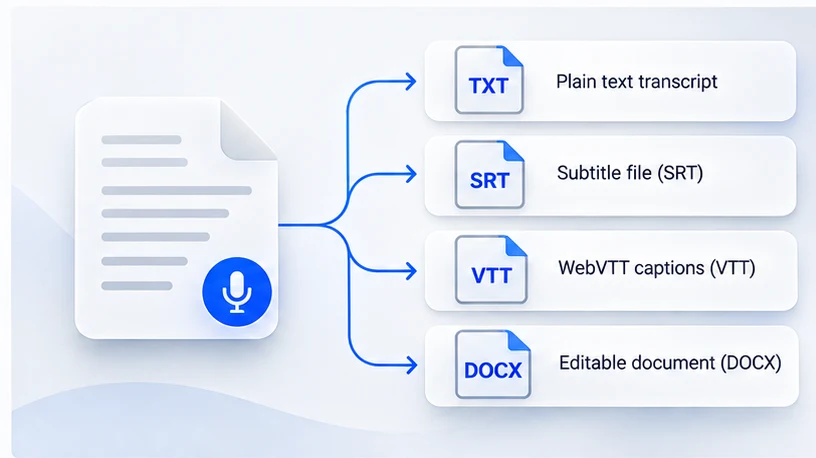
A corrected transcript can serve multiple purposes, but no single export format is ideal for every task.
TXT: The simplest readable transcript
TXT is useful when you need plain text without document formatting.
You can copy the content into a note-taking application, an email, a content management system or another analysis tool.
A TXT file may contain timestamp markers as part of the text, but that does not make it a timed subtitle file.
Choose TXT for: Notes, searchable text, copying quotations and general documentation.
DOCX: Best for document review
Microsoft Word's DOCX format is useful when colleagues need to add comments, revise phrasing or organize excerpts.
SpeechYou's documented DOCX workflow allows users to export editable transcripts and include available section timestamps when configured.
Editing the downloaded Word file does not automatically synchronize those changes back to the original SpeechYou recording note.
Choose DOCX for: Interviews, editorial drafts, stakeholder reviews and research documents.
SRT: Best for widely supported subtitle workflows
SRT, or SubRip, is a common format for timed subtitle files.
Each cue typically contains a number, start and end timestamps, and the displayed text.
An illustrative example:
1
00:00:03,000 --> 00:00:05,600
We need to finalize the onboarding flow.

2
00:00:05,700 --> 00:00:08,200
The Salesforce integration is not ready.
The commas before milliseconds are part of SRT's conventional timestamp syntax.
Choose SRT for: Video editing applications, subtitle uploads and platforms that support SubRip files.
VTT: Best for web video text tracks
WebVTT is designed for timed text tracks and web media workflows.
A basic example:
WEBVTT

00:00:03.000 --> 00:00:05.600
We need to finalize the onboarding flow.

00:00:05.700 --> 00:00:08.200
The Salesforce integration is not ready.
WebVTT uses a WEBVTT header and periods in millisecond timestamps.
Renaming an SRT file with a .vtt extension does not automatically convert its syntax.
Choose VTT for: HTML5 video and web players that accept WebVTT captions.
JSON: Best for structured workflows
JSON can be useful when transcription data needs to be processed programmatically.
Depending on the service and export schema, structured information may include text, segment timing, speaker information or metadata.
Do not assume that every JSON export contains word-level timestamps or all possible speaker fields.
Inspect the actual format before integrating it into another system.
Choose JSON for: Software integrations, structured analysis and developer workflows.
How to choose a transcript editor for interviews, meetings, podcasts and lectures
The same product is not necessarily the best fit for every recording.
Interviews and customer research
For interviews, accuracy and preservation of meaning generally matter more than visual editing.
Prioritize a tool that allows corrections, supports the source language, preserves useful timestamps and exports readable documents.
Review quotations carefully before publication.
A transcription-first workflow such as SpeechYou may be sufficient if you do not need to edit the recording itself.
Business meetings
Meeting transcripts are often used to identify decisions, responsibilities and deadlines.
Prioritize speaker labels, timestamps, searchable text and practical export options.
AI-generated summaries can help teams navigate a recording, but the original transcript should remain available when decisions need verification.
If your organization processes sensitive meetings, review the service's applicable privacy, retention and security terms before uploading recordings.
Podcasts
Podcast producers frequently need both transcript corrections and media edits.
For a published transcript, correcting words and formatting paragraphs may be sufficient.
For an edited episode, a text-based media editor such as Descript or Kapwing may be more useful.
If you need both outcomes, keep a record of which transcript matches the final audio.
Lectures and educational recordings
Students and educators may value searchable text, chapter references, timestamps and accessible exports.
Specialist terminology, unfamiliar names and equations often require review.
Avoid automatically treating a transcript as a perfect academic record, particularly when the recording includes technical vocabulary.
Multilingual recordings
For multilingual interviews or international meetings, confirm the language coverage of the selected transcription service.
SpeechYou publishes support for a broad language and script catalog, which makes it worth evaluating for multilingual recordings.
However, advertised coverage alone is not sufficient to establish quality for a specific language.
Check the output with someone who understands the source language, especially for unusual dialects or mixed-language speech.
Can an AI transcript editor replace human proofreading?
For some low-stakes tasks, automated text may be sufficient after a quick review.
For other tasks, human verification remains necessary.
The decision depends on the consequences of an error.
For a personal voice memo, a minor punctuation mistake may not matter.
For a customer interview, a misheard quotation could misrepresent the participant.
For a financial meeting, changing a figure or deadline may produce the wrong business action.
For a legal, healthcare or regulatory record, the requirements may be substantially more demanding.
A useful approach is risk-based review.
Instead of accepting or rejecting the entire transcript based on a general impression, identify the passages where errors would have the greatest impact.
Review the highest-risk sections against the source recording.
This process can be combined with automated detection of unusual words, inconsistent names or missing speaker labels, but those checks are aids rather than independent proof of correctness.
A practical transcript quality checklist
Before using a transcript as a final document, confirm the following:
- The correct source recording was processed.
- Names, products, acronyms and technical terms are accurate.
- Numbers, dates and negative statements have been reviewed.
- Speaker labels match the recording where attribution is required.
- Uncertain or inaudible passages are clearly identified.
- The editing style is appropriate for the intended use.
- Timestamps correspond to the correct source media.
- Subtitle cues are synchronized and readable, if applicable.
- The exported file opens correctly in its destination.
- Sensitive information is handled according to applicable requirements.
- AI summaries have not been substituted for verbatim wording.
- The reviewed transcript is distinguishable from editorial adaptations.
A checklist does not guarantee a perfect transcript, but it provides a repeatable process for catching important errors.
Transcript editors and accessibility: What to know
Accessible video captions require more than placing recognized words on screen.
The World Wide Web Consortium's guidance for WCAG 2.2 Success Criterion 1.2.2 describes captions as synchronized text for prerecorded audio in synchronized media.
Captions should convey relevant spoken dialogue, identify speakers where needed and include meaningful non-speech audio information.
For example, a caption track may need to indicate laughter, music or another important sound that contributes to understanding the scene.
A speech-to-text engine may focus primarily on spoken words and leave those details out.
That is one reason accessibility captioning should include a review stage.
A transcript can also support accessibility, but a standalone transcript is not always a substitute for synchronized captions.
Choose the output based on the actual accessibility requirements of the destination.
For a video with spoken dialogue, timed captions and a separate accessible transcript may serve complementary purposes.
Read the W3C explanation of prerecorded captions for the underlying requirements.
Is a free transcript editor enough?
Free transcript editing tools can be useful for occasional recordings and short projects.
However, "free" can mean different things.
One service may offer free text editing but limit transcription minutes.
Another may allow transcript exports while watermarking video exports.
A third may provide a trial but require a paid subscription for larger recordings, advanced collaboration or particular output formats.
Before choosing a free tool, consider the following:
Recording length: Can the service process your complete file?
Language support: Does it handle your recording's language and accent?
Corrections: Can you edit recognized text without changing the original recording?
Speaker labels: Are they available and editable?
Exports: Can you download the format you actually need?
Privacy: What happens to uploaded audio and the derived transcript?
Upgrade path: What will you pay if your recording volume increases?
The cheapest product is not necessarily the most economical workflow if it requires extensive manual work or additional software.
Conversely, you may not need an advanced subscription if you only transcribe a short interview occasionally.
Frequently asked questions
What is the best free transcript editor?
There is no universal best option. Kapwing and Descript offer free entry points with usage limitations. The best choice depends on whether you need basic transcript correction, video editing, subtitles or collaboration. Check current plan allowances before uploading a long recording.
Can I edit an AI-generated transcript?
Yes. Many transcription platforms offer a way to correct recognized text. For example, SpeechYou documents an Edit transcript workflow for fixing misheard words, names and terminology. Other editors offer search and replace, playback-linked editing or collaborative review.
Does editing a transcript change the original audio?
Not necessarily. In a transcription-first editor, correcting text usually changes the written transcript, not the underlying recording. In text-based video editors such as Descript and Kapwing, certain script edits can change the media timeline. Always distinguish correction mode from media editing.
How do I correct speaker labels?
Listen to the corresponding speaker turns, verify the voice where possible, and update labels using the editor's supported controls. Avoid assigning a real name when the speaker's identity is uncertain. Review interruptions and overlapping speech especially carefully.
Can AI transcripts include timestamps?
Yes. Many transcription systems provide segment timestamps or other timing information. However, timestamp availability does not guarantee word-level accuracy, frame-accurate timecode or perfect subtitle synchronization.
What is the difference between SRT and VTT?
Both are timed subtitle formats. SRT commonly uses numbered cues and comma-separated milliseconds. WebVTT starts with a WEBVTT header and uses periods in its timestamps. The correct format depends on the destination platform or video player.
Can I convert a corrected transcript into subtitles?
Yes, provided you have suitable timing information. SpeechYou supports SRT and VTT exports. Review the text, cue boundaries and segmentation before publishing the subtitles.
How accurate are AI transcript editors?
Accuracy varies by model, language, speaker, recording conditions, terminology and the type of error being measured. A general accuracy percentage does not establish performance on your specific recording. For important material, review the transcript against the audio instead of relying on unsupported accuracy guarantees.
Is transcript editing suitable for legal or medical recordings?
General transcription software may be useful in certain contexts, but specialized records can involve confidentiality, verification, certification and compliance requirements. Confirm the provider's documented safeguards and suitability before using it for regulated or sensitive material. Do not assume that an ordinary transcription subscription satisfies professional requirements.
Can I export a transcript to Microsoft Word?
Yes, if the selected service supports DOCX export. SpeechYou documents an audio-to-Word workflow for generating an editable document. A downloaded Word file is a separate copy, so changes made there do not automatically update the source recording note.
Can I edit multilingual transcripts?
Yes, when the transcription service and workflow support the relevant language. Review names, spelling, code-switching and specialized vocabulary carefully. Human verification is particularly useful when working with less-common languages or scripts.
Which editor should I use for podcast production?
If you need to correct words and publish a text transcript, a transcription-first service may be enough. If you want to remove retakes, tighten dialogue or edit the audio by changing text, consider a media editor such as Descript or Kapwing.
Final verdict: Choose the editor for the outcome you need
A transcript editor should help you produce a more reliable and useful record of spoken content.
For interviews, meetings, lectures and voice notes, the most important capabilities are often accurate transcription, straightforward corrections, speaker review and practical exports.
For edited podcasts and videos, the ability to manipulate the underlying media through transcript text becomes more valuable.
For collaborative journalism and research, review processes, shared workspaces and source verification may be the deciding factors.
SpeechYou is a strong option when the goal is transcription, correction and export rather than full video production.
Its workflow covers audio and video transcription, editable text, multilingual options, AI-generated summaries and downloadable files such as TXT, SRT, VTT and JSON, with a separately documented Word export workflow.
The key is to treat AI transcription as a starting point rather than a guarantee that every word, speaker label or timestamp is correct.
Review the material that matters, preserve the original recording and export a version suited to the next task.
Ready to turn a recording into an editable transcript?
Start transcribing with SpeechYou or compare SpeechYou plans.
Sources and further reading
Product documentation and standards consulted for this guide, accessed November 23, 2026:
- SpeechYou — Pricing and transcription features
- SpeechYou — Audio to Word Transcript
- SpeechYou — Timecoded Transcription Guide
- SpeechYou — Speaker Diarization Guide
- Descript — November 6, 2026 Release Roundup
- Descript — Transcript Generator and Editing
- Kapwing — Transcript Editor
- Rev — Transcription Editor Documentation
- Trint — Official Website
- Otter.ai — Official Website
- W3C — Understanding Captions (Prerecorded)
- YouTube Help — Add Subtitles and Captions