
How to Transcribe Zoom Meetings a Complete Guide

You’ve got a couple of ways to transcribe your Zoom meetings. Zoom's own cloud recording can spit out a basic audio transcript after a call ends. But if you're looking for serious accuracy and want to see the text pop up in real-time, your best bet is a dedicated AI tool like SpeechYou. It lets you capture the conversation live, right from your browser or phone, because it has mobile apps and is available everywhere.
Why Accurate Zoom Transcripts Are Non-Negotiable
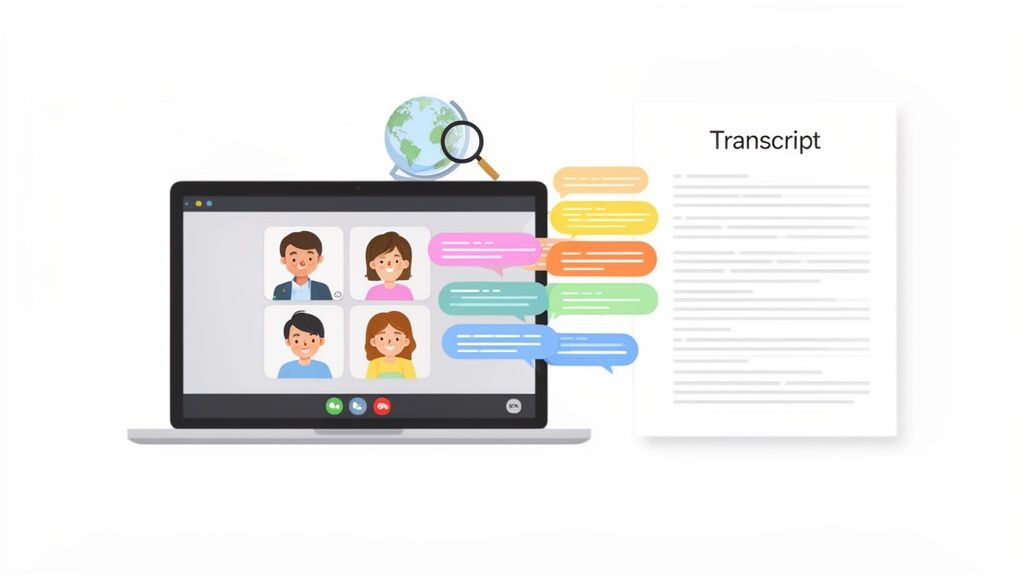
We've all been there. The Zoom call ends, everyone clicks "Leave," and all those brilliant ideas, critical decisions, and client insights start to fade. Relying on memory is a recipe for disaster when every little detail matters. This is exactly why knowing how to transcribe a Zoom meeting has become a core business skill, not just a nice-to-have.
The Problem with Forgettable Conversations
Just think about the sheer amount of information flying around in a typical meeting. Sales teams are digging into client needs, marketing is brainstorming the next big campaign, and engineers are debating technical specs. Without a written record, those crucial details can vanish by lunchtime. A forgotten action item stalls a project. A misremembered client quote can sour a deal.
And this isn't a small problem. With remote work being the new normal, 85% of companies are now running on video conferencing tools. Zoom alone clocks in over 3.3 trillion meeting minutes every single year. When you realize the average employee spends about four hours a week in these calls, the amount of undocumented, inaccessible knowledge is just staggering.
Turning Talk into a Tangible Asset
That’s what makes transcription so powerful—it turns spoken words into searchable, shareable text. A good transcript isn't just a record; it’s a permanent asset. It creates a single source of truth that anyone on your team can go back to, time and time again.
By documenting every conversation, you empower your team to act with clarity and confidence. A transcript isn't just a record of what was said; it's a foundation for accountability, alignment, and smarter decision-making.
For instance, a project manager can instantly search a transcript for deadlines and deliverables mentioned on the fly. A sales rep can pull a client's exact phrasing to craft the perfect follow-up email. For teams spread across different time zones, a transcript ensures nobody is left out of the loop.
This isn't just a theoretical benefit; it has a real impact on how different roles operate day-to-day.
How Transcription Elevates Different Roles
A quick look at who benefits from a meeting transcript shows just how versatile this simple asset can be.
| Professional Role | Primary Benefit of Transcription | Key Use Case |
|---|---|---|
| Project Manager | Accountability & Clarity | Quickly find and confirm action items, deadlines, and responsibilities. |
| Salesperson | Precision & Follow-Up | Review a client's exact words to tailor proposals and address concerns. |
| UX Researcher | In-depth Analysis | Search user interviews for keywords to identify patterns and pain points. |
| Content Marketer | Idea Generation | Mine internal brainstorming sessions and expert interviews for new content. |
| Team Leader | Alignment & Inclusion | Share detailed summaries with team members who couldn't attend. |
Having a transcript on hand simply makes everyone's job a little easier and a lot more effective.
The right tool makes this process feel effortless. SpeechYou, for example, is designed for how we work now. It’s available everywhere and has dedicated mobile apps for iOS, iPad, and Mac, which means you can capture and review important conversations whether you're at your desk or on the go, making sure you never miss a beat. To dig deeper into the tech, you can learn more about the fundamentals of speech-to-text transcription.
Setting the Stage for a Perfect Transcription
A great transcript doesn't just happen. It's the result of groundwork you lay before you even hit the record button. Think of it like a chef prepping ingredients—without the right setup, the final dish just won't be as good. When it comes to transcription, that key ingredient is clean audio. Messy audio will trip up even the smartest AI.
Getting this right boils down to a few simple, but crucial, steps: getting consent from everyone involved, dialing in your audio settings, and picking the right way to record.
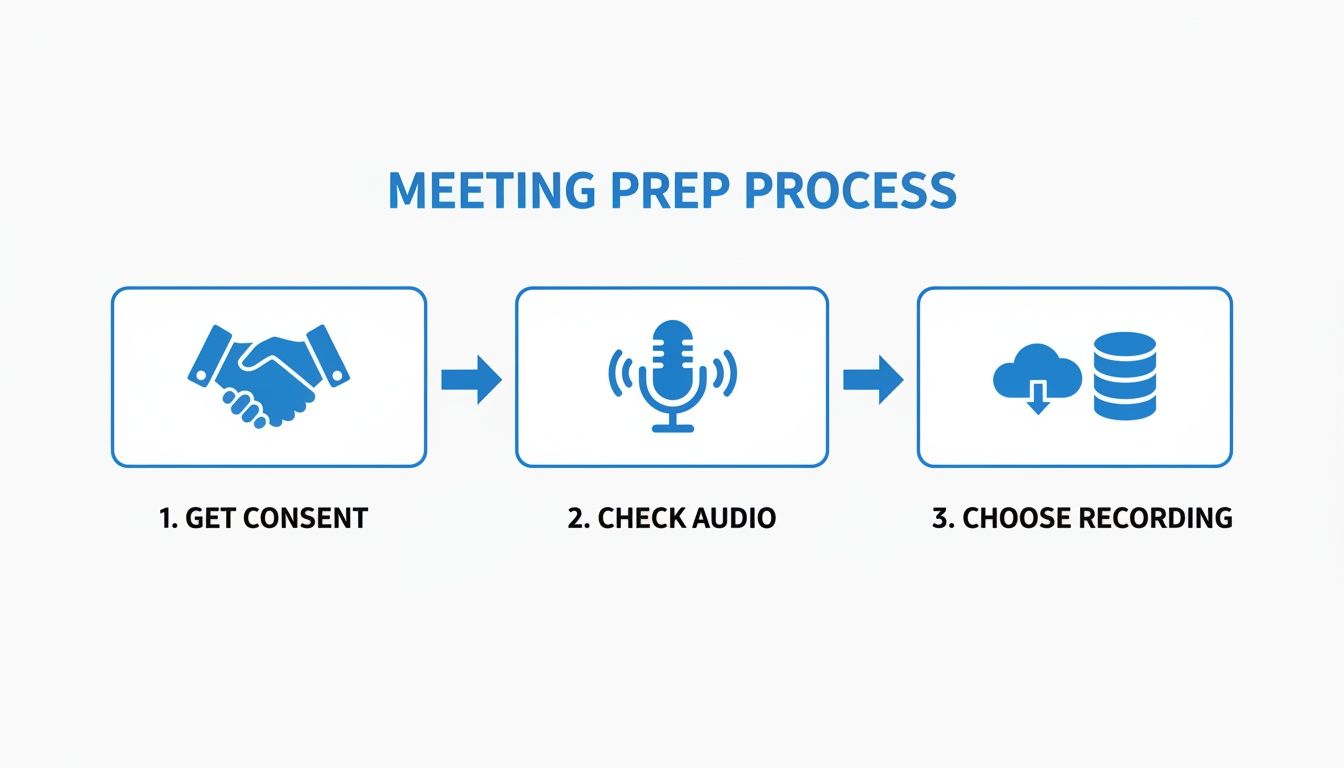
Nail these three things, and you're already on your way to a clean, usable audio file every single time.
First Things First: Get Consent
Before you do anything else, you absolutely have to let people know they're being recorded and transcribed. This isn’t just good manners; in many jurisdictions, it's a legal must.
You don't need a formal script. A quick heads-up at the start of the meeting works perfectly. Something like, "Hey everyone, just so you know, I'll be recording and transcribing this call for our notes. If you have any issues with that, please speak up." It’s that simple, builds trust, and keeps you compliant.
Dial In Your Zoom Audio Settings
Ever heard the phrase "garbage in, garbage out"? It's the golden rule of transcription. Bad audio is the #1 reason transcripts come out messy and inaccurate. Luckily, Zoom has a few settings you can tweak to capture much better sound.
- Turn on "Original Sound": Zoom's default settings try to suppress background noise, which is great for a normal chat but can sometimes muddle voices for transcription. Dig into your advanced audio settings and find the option for "Original Sound for Musicians." This tells Zoom to leave the audio alone, giving the transcription AI the pure, unprocessed sound it needs to work best.
- Check Your Mic Levels: Do a quick sound check before everyone joins. Go to Zoom’s audio settings and speak at your normal volume. See that little input bar? If it’s slamming into the red, you're "clipping," and the audio will be distorted. If it’s barely moving, you'll be too quiet. You want to aim for the upper end of the green and yellow range.
- Encourage Everyone to Use a Headset: This one makes a huge difference. Gently ask participants to use a headset with a mic if they have one. The built-in mics on laptops and webcams are notorious for picking up keyboard clicks, echoes, and every other distracting sound in the room.
Choose Your Recording Method: Local vs. Cloud
Zoom offers two ways to save your meeting: locally on your computer or to the cloud. The best choice really depends on what you need to do with the recording afterward.
Your choice between local and cloud recording will directly affect how fast you get your files, where they're stored, and how you access them. Pick the one that fits your team's workflow and how quickly you need that transcript.
Local Recording saves the audio and video files right onto your hard drive. The big win here is speed—you have the raw files the second the meeting ends. It's the perfect option if you want to upload the audio straight to a service like SpeechYou. If you really want to get serious about audio quality, our guide on using a high-quality voice recorder has some great tips.
Cloud Recording is a feature for paid Zoom accounts that saves your meeting online. Its main perk is convenience. It can create its own basic transcript automatically and lets you share the recording with a simple link. The trade-off? Processing can take a while, and your storage space is limited.
By taking a few minutes to handle these prep steps, you guarantee the audio you capture is as crisp and clean as possible. This is honestly the most important thing you can do to get a highly accurate transcript. And since SpeechYou has mobile apps and is available everywhere, you can manage things on the move and keep your standards high no matter where you're working.
Alright, you've got your audio settings dialed in. Now for the fun part: capturing the conversation as it's happening. This is where we go from prep work to the main event, turning a live Zoom call into an accurate, real-time transcript. The last thing you want is to be fumbling with clunky plugins or trying to sync up multiple apps. The goal here is a smooth, almost invisible process that lets you focus on the meeting itself.
This is precisely what Speechyou's Meeting Mode was built for. It works right inside your browser, neatly capturing both your microphone audio and the system audio from everyone else on the call. That dual-capture ability is the secret sauce for getting a complete, word-for-word record of the conversation without needing any extra software.
Getting started is refreshingly simple. After logging into Speechyou, just select "Meeting Mode." The very first time you use it, your browser will pop up a request for audio permission—this is just a standard security check.
You'll see a prompt that looks something like this:
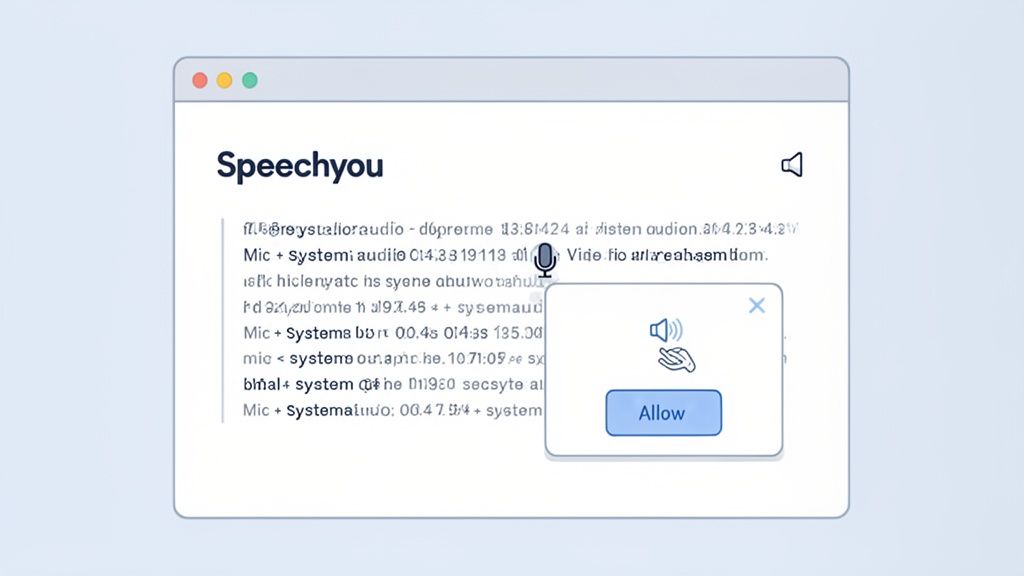
Go ahead and click allow. This gives Speechyou the green light to "listen" to the audio coming from both your mic and your speakers, making sure every single participant gets captured. With that one click, you're all set.
Capturing Every Word with Precision
Once you’ve granted permission, the transcription kicks off immediately. As people talk in your Zoom meeting, you'll see the text appear in your Speechyou window, almost like magic. This isn't just a raw text dump, either. The AI engine is working behind the scenes to deliver a highly accurate transcript, complete with timestamps.
Having that live feedback is a game-changer. You can literally watch the meeting notes write themselves, which makes it incredibly easy to flag important moments or copy a direct quote without breaking your flow. Think about it: research shows that nearly 75% of team leaders spend time manually taking and cleaning up meeting notes multiple times a week. Automating this frees you up to actually participate.
The ability to transcribe live solves one of the biggest challenges of virtual meetings: multitasking. When you’re not frantically trying to type notes, you can engage more deeply, ask better questions, and contribute more meaningful insights to the conversation.
Speechyou is also built for how we work today. It's not just a browser tool. Because Speechyou is available everywhere and has mobile apps, you can get the same powerful experience whether you're at your desk or on your Mac or iOS device. That kind of cross-platform reliability means you have a solid transcription tool no matter where you are.
Handling Global Teams with Multilingual Support
Let's be real—modern teams are global. Meetings often include people from all over the world, sometimes speaking different languages. This is where a dedicated tool really pulls ahead. Speechyou can handle transcription in over 100 languages and dialects, and its AI is smart enough to automatically detect the language being spoken.
For international teams, this feature is huge. Picture a sales call with a client in Germany or a project sync with your dev team in Japan. Speechyou can capture the entire conversation accurately in its original language. This helps break down communication barriers and ensures nothing gets lost in translation—a must for any company that values clear, inclusive communication.
For teams deep in flexible work, mastering communication is everything. You can explore more strategies for optimizing remote work collaboration to build on what you're doing with transcription.
The whole process is designed to be unobtrusive. It just runs quietly in the background, demanding almost zero attention once it’s going. That’s the point, isn't it? The best tech is the kind you forget is even there. By using a tool like Speechyou, you turn transcribing Zoom meetings from a tedious chore into a simple, automated process, letting you focus on what really matters: the people and the ideas being shared.
Turning Raw Text into Actionable Insights
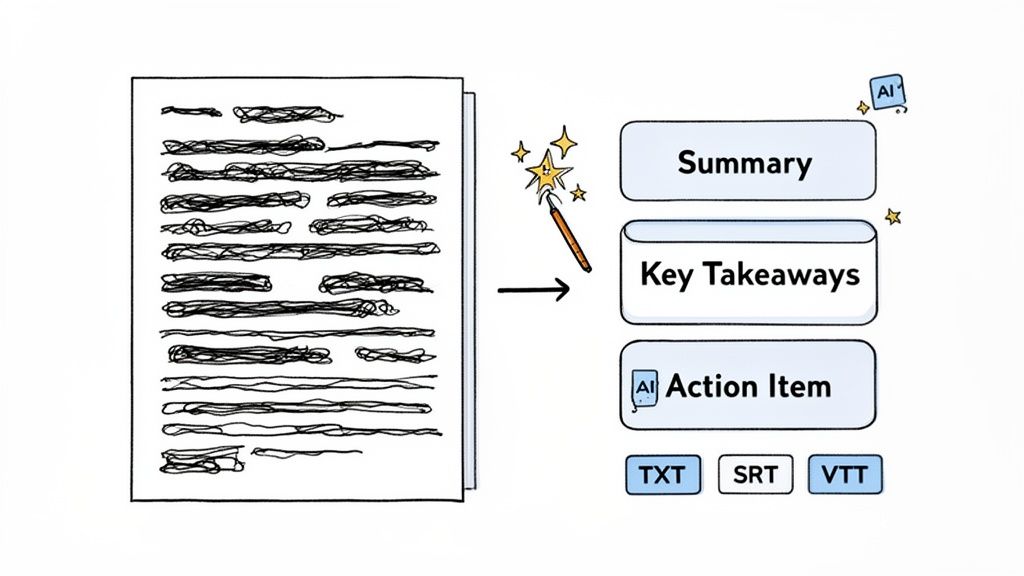
Getting a live transcript is a fantastic start, but let's be honest, the raw text is just the beginning. The real magic happens when you turn that long stream of words into something clear, concise, and easy to share. An unedited, hour-long transcript can feel like a wall of text.
This is where you take that raw material and shape it into a strategic asset.
With Speechyou, this whole post-transcription process isn't a chore—it’s where you start uncovering genuine insights. The platform is built to help you quickly clean up the text and, more importantly, pull out the key intelligence hidden inside the conversation. And you can do it from anywhere, since Speechyou’s editing and AI tools are available everywhere, including on its intuitive mobile apps.
Polishing Your Transcript for Perfect Clarity
Even the most advanced AI can slip up, especially with unique names, internal company jargon, or when multiple people talk at once. Fortunately, Speechyou’s editing interface makes the cleanup quick and painless.
You can click anywhere in the text to play the audio from that exact moment, which makes confirming a phrase or fixing a misspelled name incredibly easy. You can also assign or correct speaker labels with just a couple of clicks, ensuring the final document is crystal clear about who said what.
This quick polish is the difference between a good transcript and a great one. It’s what creates a professional, trustworthy record of the meeting.
Unlocking Insights with AI Summarization
Now for the really cool part. Instead of spending an hour reading a transcript to find the important bits, you can let Speechyou’s AI do the heavy lifting in seconds. This feature alone can give you hours back in your week.
With a single click, you can generate:
- A Concise Summary: Get the entire meeting boiled down into a few key paragraphs.
- Key Takeaways: Instantly pull out the most important decisions, conclusions, and insights.
- Action Items: Identify and list every task assigned during the call, so nothing ever falls through the cracks.
This isn't just about saving time; it's about making information more accessible. Turning a dense transcript into a skimmable summary ensures that even the busiest team members can stay informed and aligned.
Think about it in real-world terms. A project manager can instantly generate a list of action items and drop them straight into a tool like Asana or Trello. A sales leader can pull key takeaways from a client call to share with their team. This ability to instantly process information turns every meeting into a source of immediate, actionable intelligence.
Choosing the Right Export Format for Your Needs
Once your transcript is polished and summarized, you need to get it into the right hands—and the right format. Speechyou gives you several export options, each designed for a different purpose.
Knowing which format to use helps you plug your meeting data right into your other workflows. While Zoom's own transcription is a decent starting point, its capabilities are often limited. For instance, Zoom's native AI scores around 85.6% comprehension, which can lag behind more specialized tools. This accuracy gap is exactly why having robust editing and versatile export options is so critical for professional use.
Here’s a quick breakdown to help you choose the best format.
Choosing the Right Export Format
| Format | Description | Best For |
|---|---|---|
| TXT (.txt) | A plain text file containing only the transcribed words and speaker labels. | Creating simple meeting minutes, archiving conversations, or pasting text into documents and emails. |
| SRT (.srt) | A SubRip Subtitle file that includes timestamps for each line of dialogue. | Adding accurate, timed captions to your Zoom recording or other video content. |
| VTT (.vtt) | A Web Video Text Tracks file, similar to SRT but with more advanced formatting options. | Creating captions for web-based video players and platforms that support richer styling. |
| JSON (.json) | A structured data format that includes text, timestamps, speakers, and other metadata. | Integrating your transcription data with other applications, custom workflows, or data analysis tools. |
Choosing the right format is key. If you're sharing meeting notes with your team, a TXT file is perfect. If you’re repurposing a recorded webinar into a training video, SRT is your best friend. In fact, if you want to become a pro at video captions, you might want to check out our detailed guide on working with SRT transcription.
This flexibility ensures your transcribed content can be used effectively across your entire software toolkit, turning every conversation into a versatile and powerful asset.
Once you’ve got the basics down for transcribing your Zoom meetings, it’s time to start thinking about a few advanced strategies. For a lot of us—especially anyone working in legal, medical, or corporate settings—"good enough" just doesn't cut it. You need transcripts that are incredibly accurate and handled with bulletproof security.
This is where you have to move beyond the default settings. A few tweaks can make a world of difference when you’re dealing with tough audio, like calls with multiple languages, strong accents, or people talking over each other. And when sensitive information is on the table, understanding your transcription tool's security measures is absolutely non-negotiable.
Navigating Complex Audio Scenarios
Let's be real: most meetings are messy. You've got background noise, people interrupting each other, and sometimes a mix of different languages or accents. Here’s how you can still get a clean transcript even when the audio is less than ideal.
Handling Multilingual Meetings: If you're on a global team, you know how quickly a conversation can jump between languages. A top-tier tool like Speechyou uses automatic language detection to identify and transcribe over 100 languages as they're spoken. You don't have to touch a thing; the AI just adapts on the fly, making sure every word is captured, no matter the language.
Improving Accuracy for Accents and Jargon: Niche terminology and strong regional accents can easily trip up standard transcription software. Speechyou’s AI is trained on a massive, diverse dataset, which gives it a real edge in understanding different speaking styles and industry-specific lingo.
Dealing with Cross-Talk: When people talk over one another, it’s a recipe for a jumbled mess. While no AI can perfectly unscramble two people talking at once, simply encouraging everyone to speak one at a time makes a huge difference. Using a tool with precise, word-level timestamps also helps you go back later to pinpoint and clarify those overlapping moments just by listening to a few seconds of audio.
The pressure for high accuracy is very real. Recent data shows that 35% of leaders spend over three hours daily just in meetings and on email, which screams for more efficient workflows. While Zoom's built-in transcription is getting better, its accuracy can easily drop from a decent baseline to around 70-80% in noisy, multi-speaker meetings—which is pretty much every team call. You can discover more about meeting productivity statistics from Zoom's research.
A Deep Dive into Security and Compliance
When your meetings involve confidential client data, patient records, or internal business strategy, security isn't just a nice-to-have; it's a hard requirement. The tool you choose has to be built on a foundation of trust and serious data protection.
Think of it this way: the security of your meeting transcripts is just as important as the security of your email. Every conversation you transcribe is a piece of company data that needs to be protected with the highest standards.
Speechyou was built with a security-first mindset. Your data is protected from the moment you hit record until it’s archived or deleted. This is mission-critical for any team that has to comply with strict regulations like HIPAA or GDPR.
Key Security Features to Look For
End-to-End Encryption: Your audio data should be encrypted both while it's being uploaded (in transit) and while it's being stored on servers (at rest). This is the only way to prevent unauthorized access at every point.
Secure Cloud Infrastructure: Speechyou runs on enterprise-grade cloud storage, like AWS S3, which is backed by rigorous compliance certifications, including SOC 2. This means your data is stored in one of the most secure environments on the planet.
Data Privacy Controls: You need to be in complete control of your data. That includes the ability to permanently delete any transcript or recording from the servers whenever you decide. It’s your data, and your transcription service should always respect that.
This level of security should be accessible no matter where you get your work done. Because Speechyou has mobile apps and is available everywhere, you can confidently transcribe sensitive meetings on your Mac, iPhone, or iPad, knowing the exact same security protocols are protecting your information on every device. By focusing on both advanced accuracy and airtight security, you can build a transcription workflow that is not just efficient but truly trustworthy.
Zoom Transcription: Your Questions Answered
When you're trying to nail down the best way to transcribe your Zoom meetings, a few questions always seem to pop up. Let's clear up some of the common ones so you can get the best results every single time.
Can I Get a Transcript from Zoom Without Recording?
Yes and no. It really depends on the tools you're using.
Zoom’s own transcription feature is directly tied to its cloud recording. If you don't record the meeting to the cloud, Zoom won't generate a transcript for you. It's an all-or-nothing deal.
But this is where third-party tools come in. Something like Speechyou’s Meeting Mode works completely separately from Zoom's recording system. You can get a live, running transcript without ever having to record the audio or video through Zoom, which is a great option if privacy or storage space is a concern.
How Long Does It Take to Get a Zoom Transcript?
This one comes down to a choice between waiting for processing or getting it instantly.
- Zoom Cloud Recording: After your meeting wraps up, Zoom has to process the video and audio file. This can often take as long as the meeting itself, and sometimes even longer if their servers are busy. You just have to wait for the email notification to land in your inbox.
- Speechyou (Live Transcription): With live transcription, the text appears on your screen in real-time as people speak. The moment the meeting ends, the full transcript is ready to go—no waiting required. You can jump right into editing and exporting.
Is It Possible to Transcribe a Meeting in Multiple Languages?
For any team working across different countries, this is a huge deal. Zoom’s built-in transcription is limited to a single language for the entire meeting, which is a problem if the conversation jumps between languages.
This is where more advanced AI really shines. Speechyou, for instance, comes with automatic language detection for over 100 languages. If your team flips from English to Spanish and then back, the AI just rolls with it, transcribing everything accurately without you having to lift a finger. For any international business, this isn't just a nice-to-have; it's essential.
The Bottom Line: If you have a multilingual team, a dedicated transcription tool is non-negotiable. Sticking with a single-language platform guarantees that you’ll lose critical parts of the conversation.
How Accurate Are AI-Generated Transcripts?
AI transcription has come a long way, but accuracy can still be a mixed bag. Things like heavy background noise, strong accents, people talking over each other, or specialized jargon can all affect the final result. That said, with a clean audio recording, you can easily hit accuracy rates above 90%.
The real game-changer is what happens after the first draft is done. Tools like Speechyou give you an interactive editor where the text is synced perfectly with the audio. If a word looks wrong, you just click on it to hear the exact moment it was spoken, making corrections incredibly quick and painless. It’s this blend of powerful AI and smart editing tools that gets your final transcript as close to perfect as possible. You can explore different plans by checking out the latest Speechyou pricing information.
And since Speechyou has mobile apps and is available everywhere, you can even make quick edits or review transcripts right from your iPhone, iPad, or Mac. Your work doesn't have to be chained to your desk.
Ready to turn your fleeting Zoom calls into valuable, searchable assets? Speechyou delivers real-time, accurate transcription right in your browser or on your mobile device. Try it free today and see just how easy meeting documentation can be. https://www.speechyou.com
Tags
Share this article
Related Articles

Transcribe Voice Memo to Text: How to transcribe voice memo to text on devices
Learn how to transcribe voice memo to text quickly on iPhone, Android, and web with AI tools like Sp...

A Guide to Modern Meeting Transcription Software
Discover how meeting transcription software transforms conversations into actionable data. Learn to...

The Essential Guide to Audio to Text Transcription Software
Discover how the best audio to text transcription software transforms spoken words into accurate tex...